Feature · Remote control

Your phone as the remote

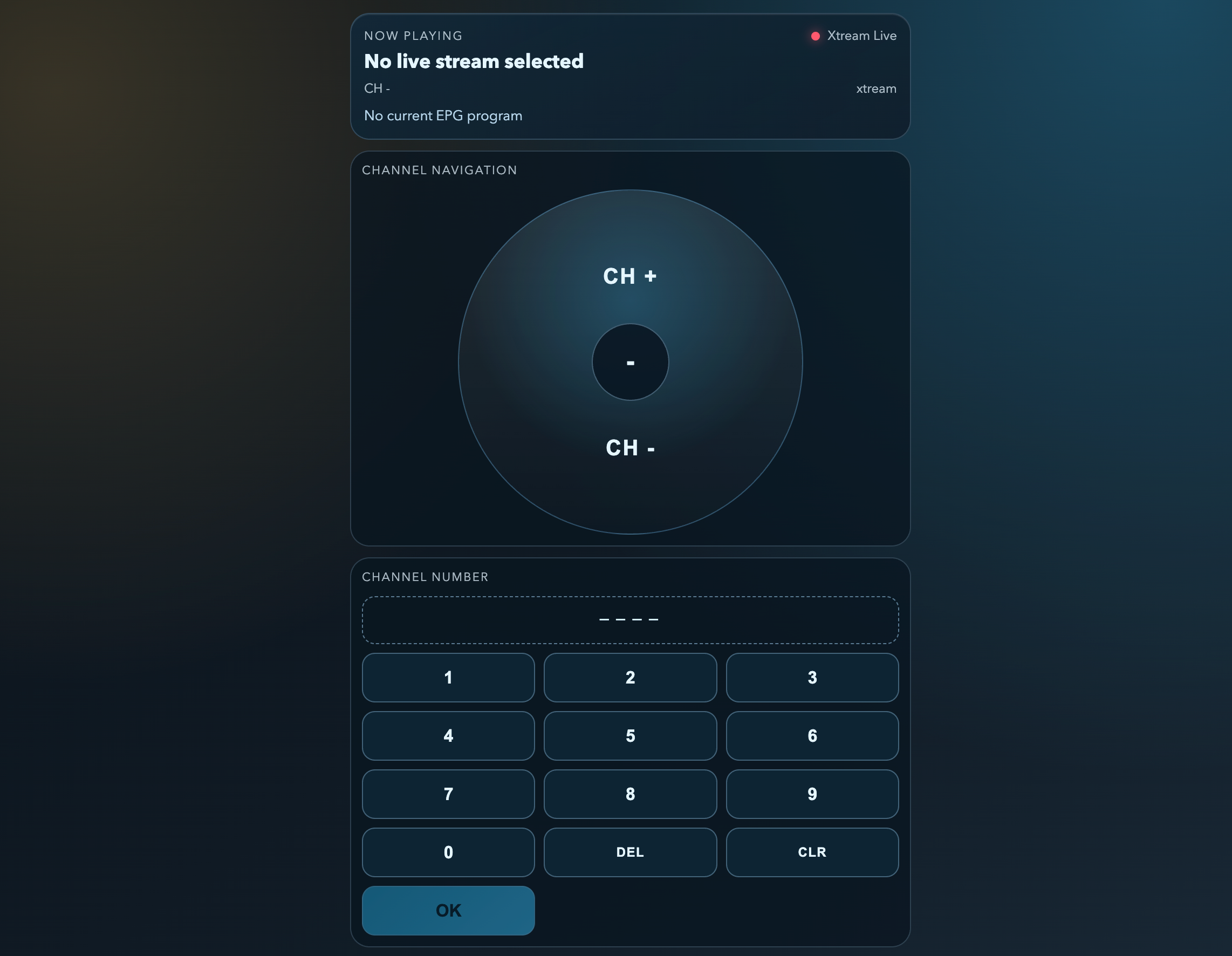
The desktop app can serve a small web remote to any phone or tablet on your network: channel up and down, direct channel numbers, volume for the built-in player, and a now-playing panel with the current program. No app to install, no account.

  • Desktop app feature
  • Any phone browser
  • Same Wi-Fi network
  • QR code setup
The web remote with a now-playing panel, channel navigation and a number pad

Setup

Ready in three steps

Enable it once in the settings; the address and QR code stay there for every device you want to use.

On the desktop app

  1. 1

    Open Settings › Remote control on the desktop app and enable the remote. The default port is 8765; change it if something else uses it.

  2. 2

    Scan the QR code shown in the settings with your phone, or type the displayed address into its browser. Phone and computer must be on the same network.

  3. 3

    Keep the page open. It shows what is playing and offers channel up and down, a number pad and, for the built-in player, volume.


What you get

A remote that knows what is on

01

Channel up and down

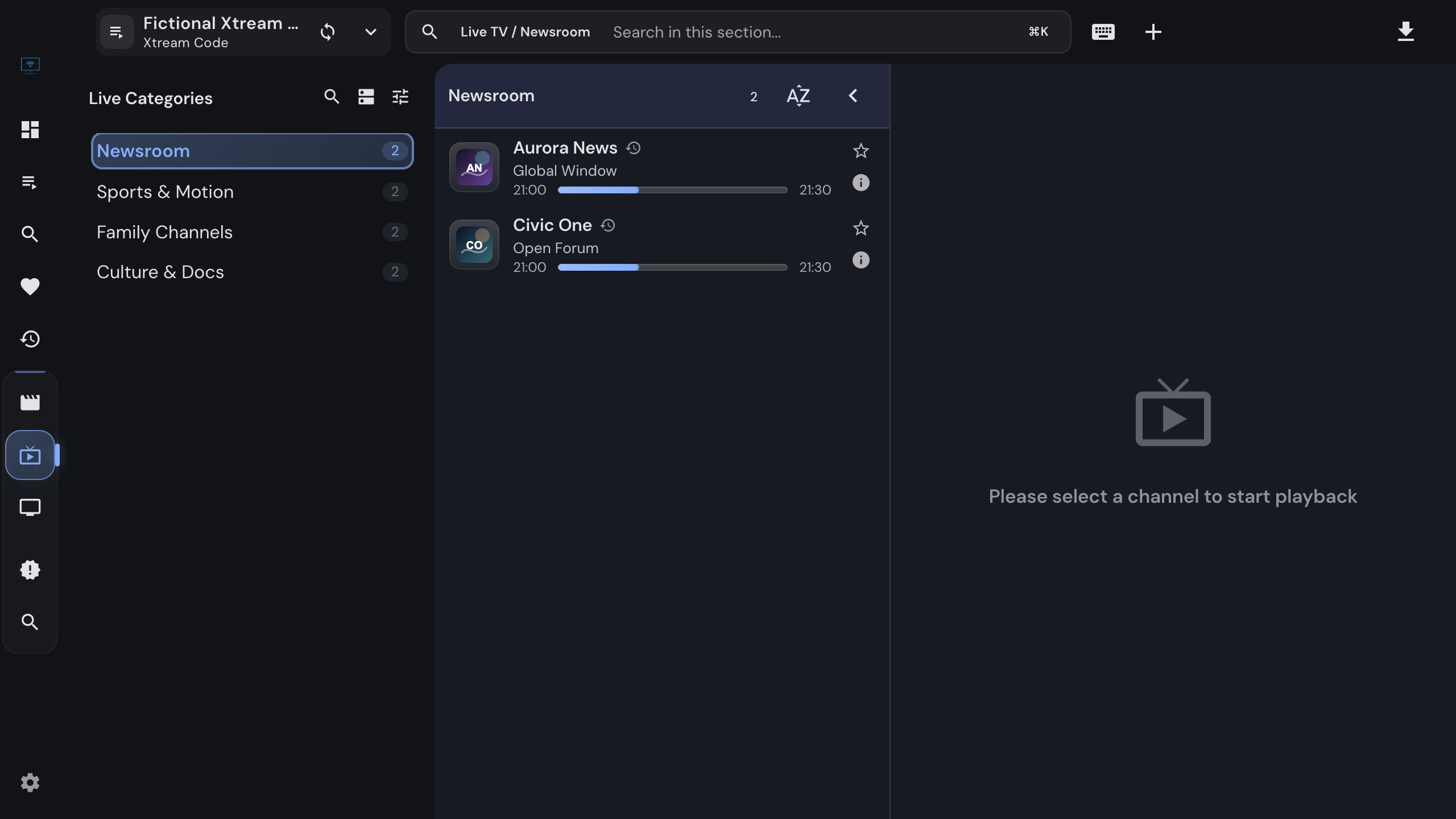
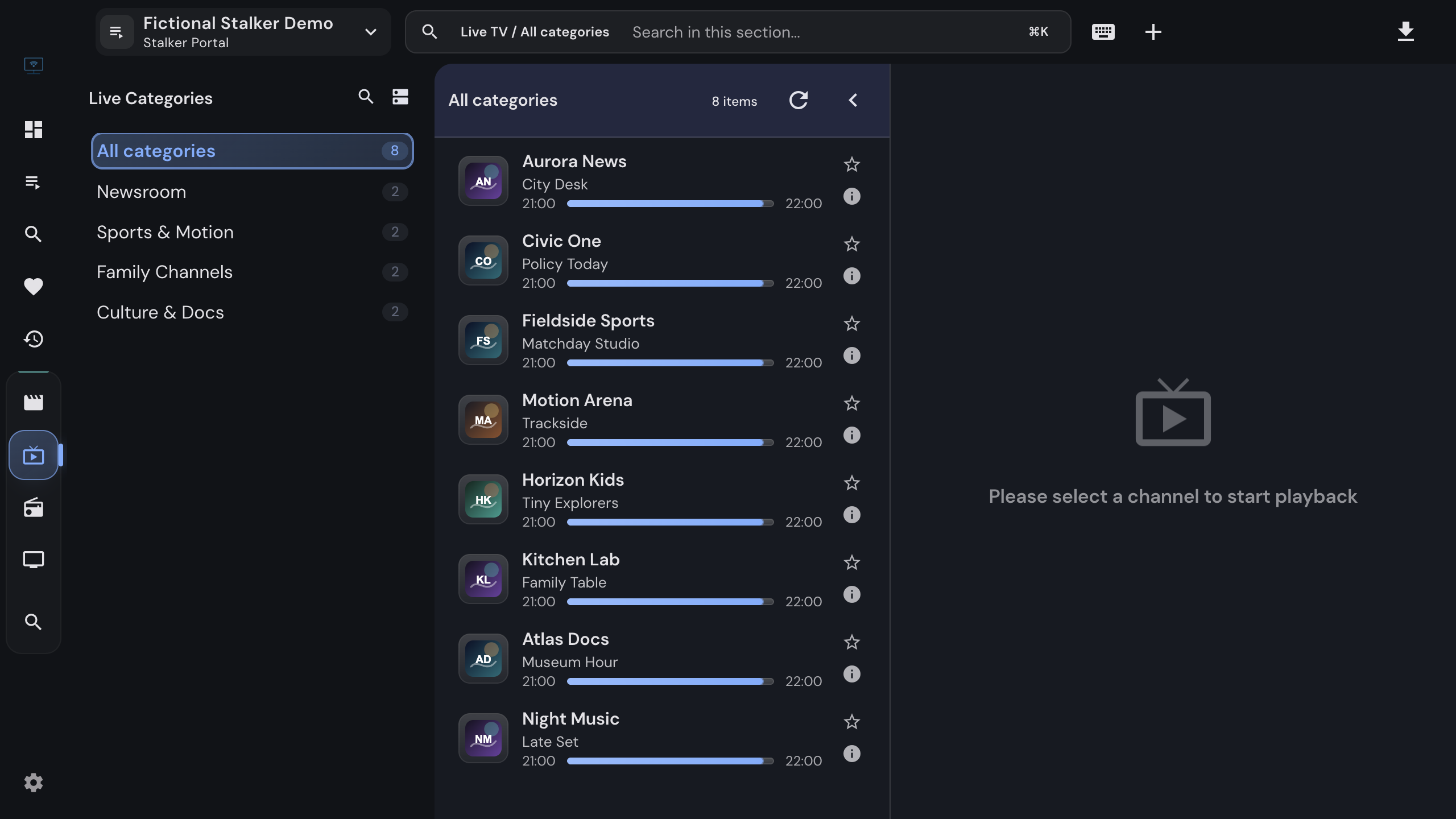
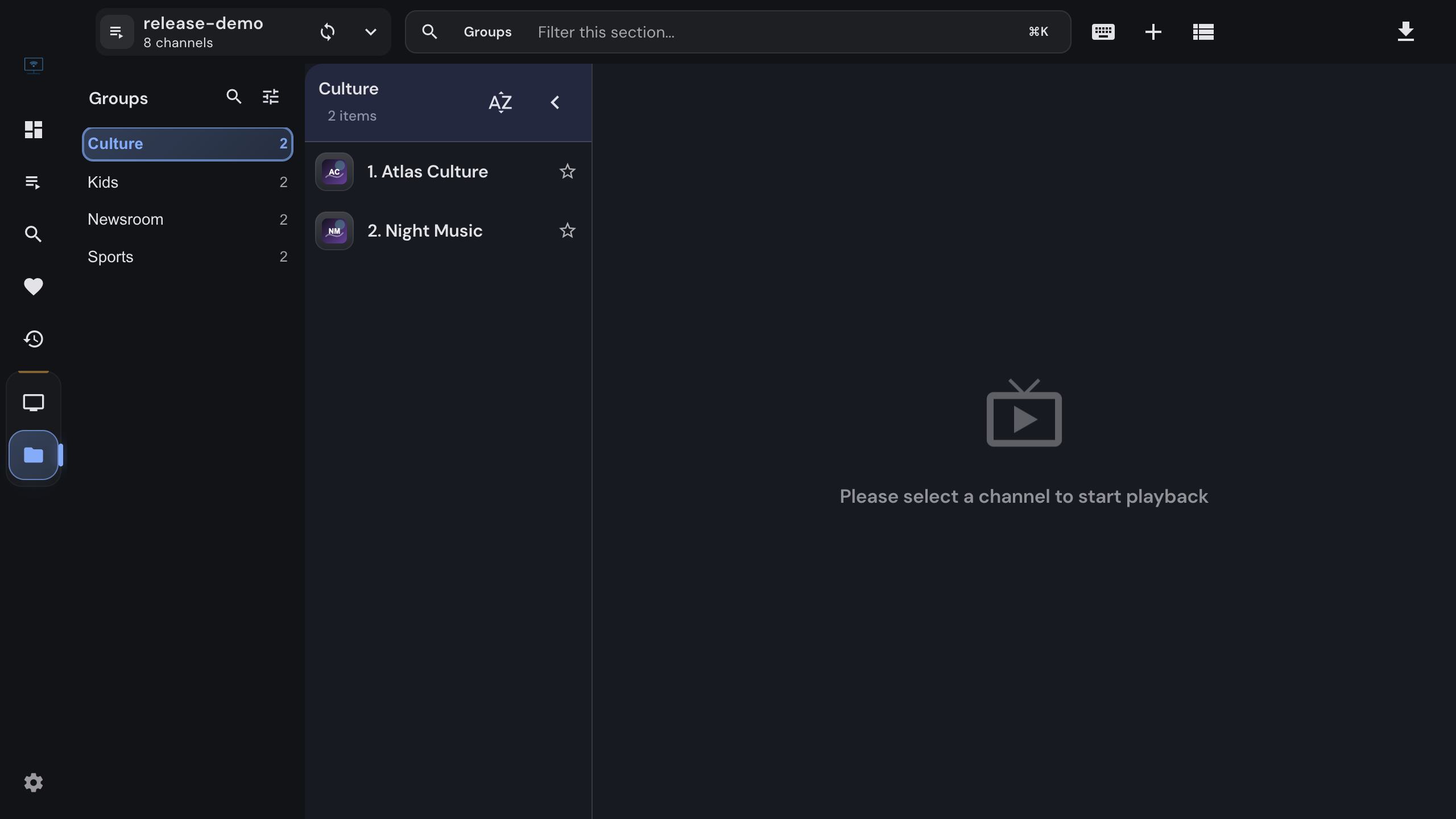
Step through the list you are looking at: the whole playlist in the M3U player, the current category in a portal, the filtered collection in favorites and recent.

02

Direct channel numbers

Type a number on the pad to jump to that position in the list, the way a set-top box remote does.

03

Now playing

The remote shows the source, the channel name and number and the current program, refreshed every two seconds.

04

Volume

Volume up, down and mute for the built-in players in the M3U player; external MPV or VLC keep their own volume.

05

Works with every source

M3U playlists, Xtream live TV, Stalker live TV and radio, and the favorites, recent and global collections all publish their status to the remote.

06

Nothing to install

The remote is a small web page served by the desktop app itself. Any phone or tablet browser works, and there is no account.


Under the hood

The details

Where it runs
Desktop app only. The app hosts the remote page and the small API it uses.
Address
Your computer's local IP address and the configured port, shown as text and as a QR code in the settings.
Default port
8765, configurable in Settings › Remote control.
Network
Local network only. The remote has no authentication or encryption, so keep it off networks you do not trust.
Numbers
A number selects the channel at that position in the active list, not a channel number from the guide.
Updates
The remote polls the app every two seconds; a channel change on the desktop appears on the phone right after.

FAQ

Questions about the remote

Do I need to install an app on my phone?+

No. The remote is a web page served by the IPTVnator desktop app. Open the address or scan the QR code from the settings in any phone or tablet browser.

Does the remote work over the internet?+

No. It is meant for the local network, where your phone and computer share a Wi-Fi, and it has no authentication or encryption. Do not expose the port to the internet.

Which players support volume from the remote?+

The built-in web players in the M3U player. MPV, VLC and the embedded MPV engine keep their own volume, and portal views currently pass only channel commands.

What does a channel number mean on the remote?+

The position in the list you are currently looking at, counted from one, like the numbering in the sidebar. It is not the channel number a provider may print in its guide.

Does the remote work with the browser version of IPTVnator?+

No. Serving the remote page requires the desktop app, which hosts the small web server behind it.


Keep reading

Set up a source first

Official downloads only

IPTVnator is a player, not a TV service. It is distributed exclusively through GitHub releases and the package managers listed on this page. Websites that sell "IPTVnator subscriptions", channel packages or "activated" copies are not affiliated with the project. How to recognize unofficial sites.