
How to Load an M3U Playlist and Add an EPG in IPTVnator
Import an M3U or M3U8 playlist into IPTVnator from a URL, a file or pasted text, keep it updated, and attach an XMLTV program guide. Covers channel groups, catch-up attributes, EPG matching by tvg-id, and the usual reasons a playlist or guide does not load.

An M3U playlist is the plainest way to get channels into IPTVnator: a text file that lists streams, one per line, with optional attributes for logos, groups and program guide ids. Providers hand it out as a link or as a file, and IPTVnator accepts both, plus the file’s raw text. This guide walks through the import, the maintenance options, and how to attach an XMLTV program guide so channels show what is on.
It applies to the desktop app on Windows, macOS and Linux and, with the limits noted below, to the self-hosted browser version.
IPTVnator is a player, not a service
It does not include playlists or channels. The playlist link, file and guide URL in this guide come from the provider you already have a contract with.
Three ways to import
In IPTVnator
- 1
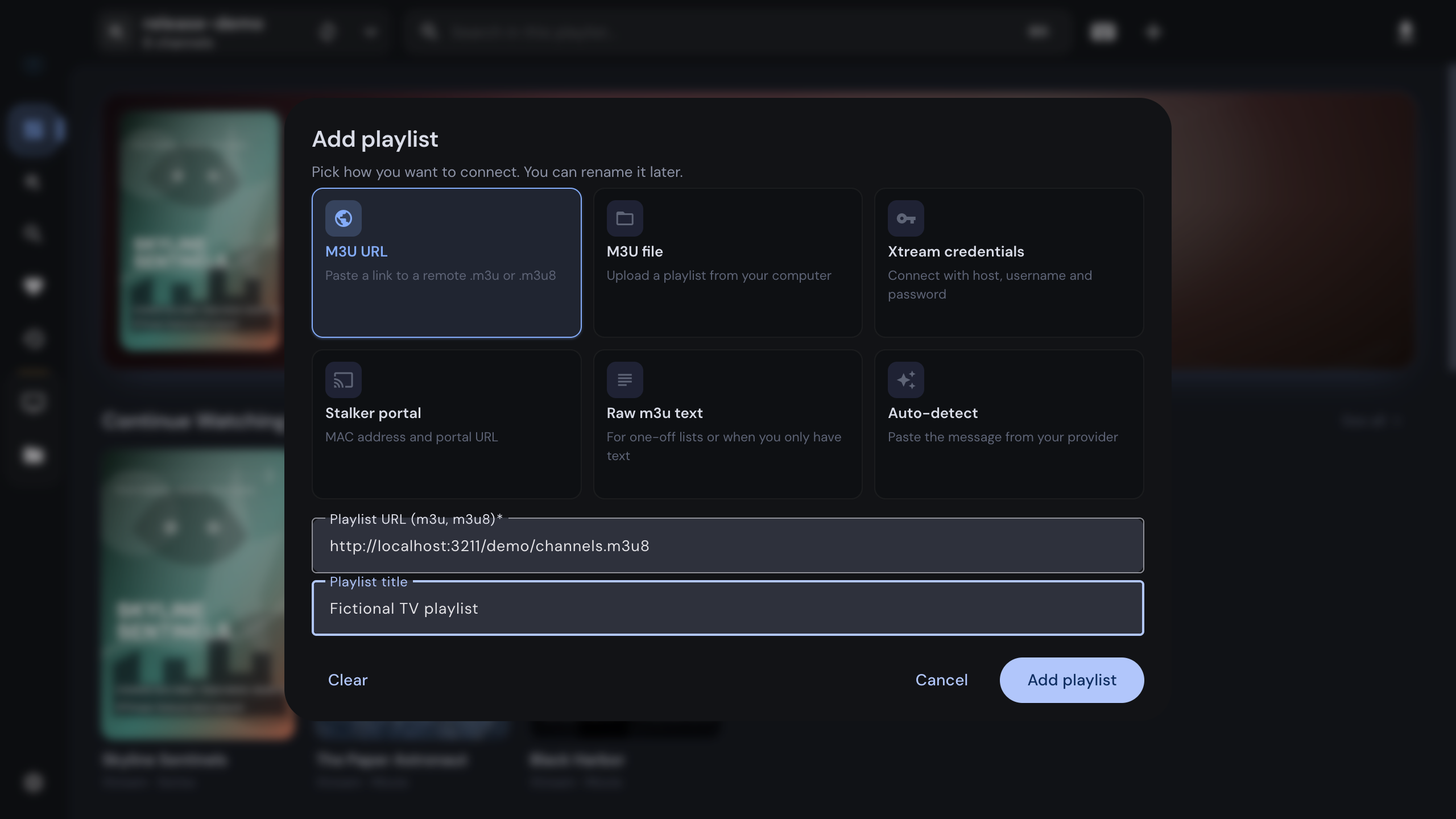
Open the Add playlist dialog from the dashboard, the header playlist switcher, or the command palette entry "Add M3U playlist".
- 2
Choose "M3U URL" and paste the link your provider gave you, or choose "M3U file" and pick the file, or choose "Raw m3u text" and paste the playlist itself.
- 3
For a URL, optionally fill in a playlist title; without one, IPTVnator falls back to the file name. A file keeps its file name and pasted text is titled "Imported as text"; you can rename either later.
- 4
Click "Add playlist". The channels are parsed, grouped by their group-title attribute, and the playlist opens.
Two shortcuts exist on the desktop app. Drop an .m3u or .m3u8 file anywhere onto the
IPTVnator window and it is imported on the spot. And because the app registers both file
extensions, opening a playlist from the file manager or passing it on the command line
imports it as well, even while IPTVnator is already running.
Playlist links with credentials
Many provider links end in get.php with a username and password in the query string.
Such a link works as an M3U URL, but it is really an Xtream Codes account, and adding it
as one gives you movies, series, provider metadata and catch-up on top of the channel
list. The Auto-detect method recognizes the link and offers both.
Inside the playlist
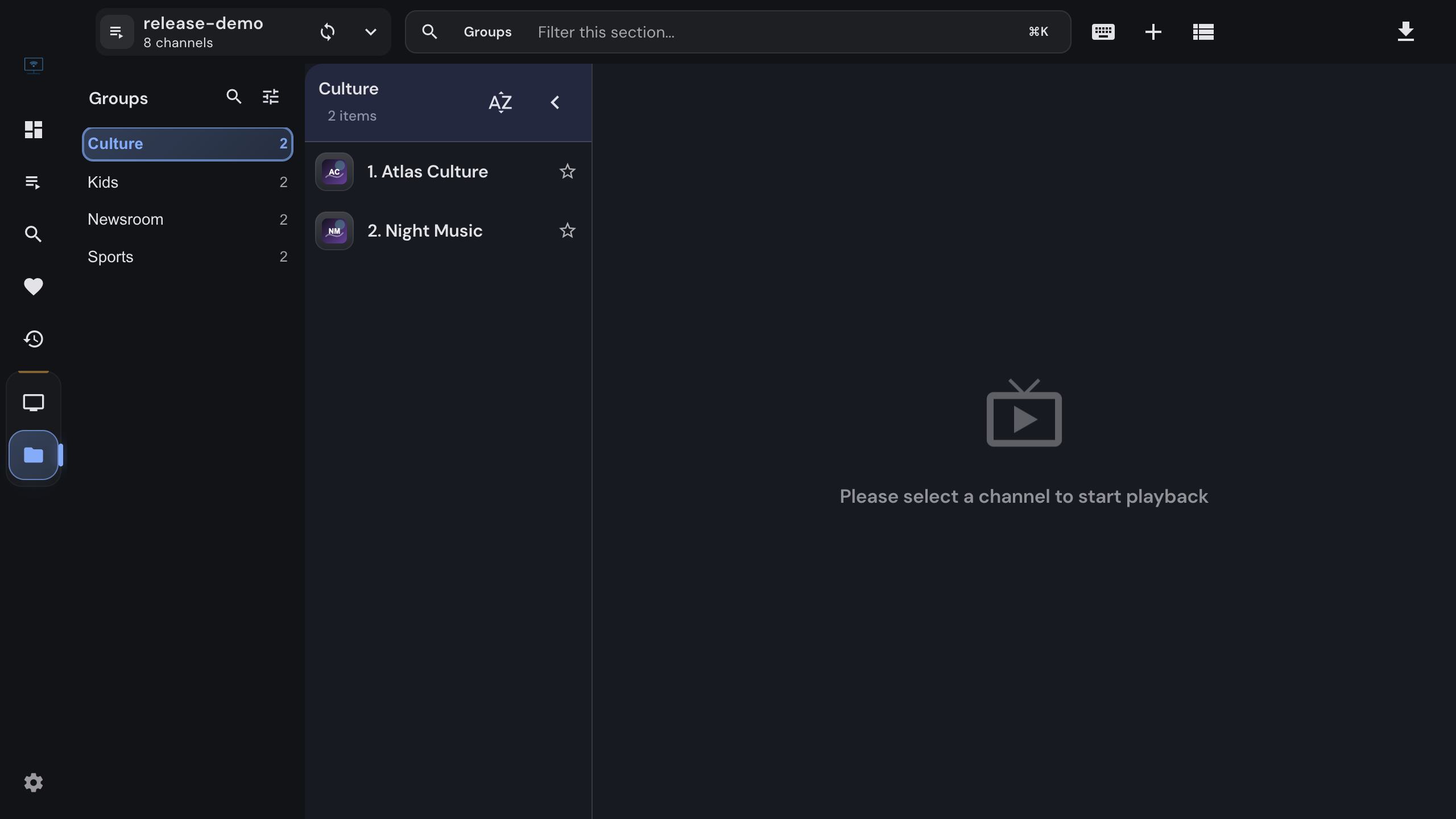
The playlist page keeps the player on the right and a sidebar with four views:
- All channels, a virtualized list that stays fast with tens of thousands of entries, with search that filters as you type.
- Groups, one expandable section per
group-title. Groups you do not need can be hidden with Manage groups in the header of this view; the hidden set survives refreshes. - Favorites, reorderable by drag and drop.
- Recent, the channels you watched last.
Under the player, the program guide runs as a horizontal timeline once a guide is attached,
with a vertical single-day list as the alternative view in the settings. Channels marked
with radio="true" open in a dedicated audio layout, and entries that look like movie
files open in a movie detail view when TMDB metadata is enabled.
Keep the playlist current
Open the playlist details from the playlist switcher in the header or from the source card on the dashboard. Besides the title you will find:
- Refresh playlist, which downloads the file again from its URL or re-reads it from disk while keeping your favorites, hidden groups and settings.
- Auto-update, which does the same automatically on every start of the desktop app, with the result reported once the update is done.
- User agent, for providers that only answer known player signatures.
- Export playlist as m3u, the current channel list as a file.
- EPG sources, the guide URLs used for this playlist, described next.
Attach a program guide
Desktop only
The program guide is downloaded, parsed and stored on your device by the desktop app. The browser version plays the channels but does not load XMLTV.
IPTVnator reads guides in the XMLTV format, as a plain .xml file or compressed
.xml.gz. Providers publish the URL next to the playlist, and many put it straight into
the playlist’s first line as url-tvg or x-tvg-url. In that case there is nothing to do:
the sources are imported when the playlist is added, and the playlist details list them
with a note on how many were picked. Very long provider lists are trimmed to the guides that
match the playlist’s country and language hints.
For everything else, add the URL yourself:
Settings › EPG
- 1
Open Settings from the bottom of the sidebar and choose the EPG section.
- 2
Click "Add EPG source" and paste the URL of the .xml or .xml.gz file.
- 3
Save. IPTVnator downloads and parses the guide in the background and shows a status chip next to the source: up to date, needs refresh, or failed.
- 4
Open a channel. The current program appears in the channel list and the timeline under the player fills in.

Sources added in the settings apply to every playlist. A source added in the playlist details applies to that playlist only and is kept across refreshes, as is a source you removed there, so a provider cannot silently re-enable it.
How channels are matched
A guide entry is attached to a channel by comparing ids, in this order:
- the playlist’s
tvg-idagainst the XMLTV channel id, - the playlist’s
tvg-nameagainst the XMLTV display name, - the channel name itself.
If none match, the channel simply shows no program. The fix is either a playlist with proper
tvg-id values, or a manual mapping: right-click the channel, choose Map EPG channel,
and search the guide for the right entry. Mappings are stored on your device and survive
playlist refreshes.
Catch-up from the timeline
Providers that keep an archive mark channels with catchup, catchup-source and
catchup-days, or with the older tvg-rec and timeshift attributes. IPTVnator reads
them from the playlist, shows how many days of archive a channel has, and lets you start a
past program from the timeline. Without those attributes the timeline is a schedule only;
the guide alone cannot make a stream replayable.
Troubleshooting
- Failed to fetch the playlist: the URL is wrong or the host is down. The desktop app shows the HTTP status it received; 401 and 403 mean the link needs credentials or is restricted, 404 means it does not point to a playlist.
- Certificate for this playlist host is invalid: the provider’s TLS certificate is broken. IPTVnator offers to trust that one host; other hosts still need valid certificates.
- The playlist imported but has no groups: the file carries no
group-titleattributes. Everything is in All channels, and Groups stays empty. - A guide is attached but a channel shows nothing: see the matching order above, then map the channel by hand. A guide that was fetched hours ago can also be refreshed from the settings.
- The guide fails to download: check the URL in a browser first. Sources on a private or local network address ask for confirmation before IPTVnator connects to them.
- Some channels do not play: the built-in web players cannot decode every codec. Open
the stream in MPV or VLC via Settings › Playback, or enable the experimental embedded
MPV engine. DASH streams with ClearKey keys declared through
#KODIPROPlines play in the built-in player.
Related
Windows, macOS and Linux builds, package managers and the browser version.
A closer look at how XMLTV data reaches your channels.
When your provider link is really an Xtream login.
FAQ
Frequently asked questions
What is the difference between an M3U and an M3U8 playlist?+
Nothing that matters to IPTVnator. Both are the same text format; M3U8 only signals that the file is UTF-8 encoded. Both extensions are accepted from a URL, a file or pasted text, and both can carry the same attributes for logos, groups, program guide ids and catch-up.
Does IPTVnator refresh a playlist that was added from a URL?+
On request always, and automatically on every start when you enable Auto-update in the playlist details. The desktop app downloads the file again, keeps your favorites and settings, and reports what changed. A playlist imported from a local file is refreshed from that file.
Why do my channels show no program information?+
The channel is not matched to a guide entry. IPTVnator matches by tvg-id first, then by tvg-name, then by the channel name. Check that the playlist carries tvg-id values that exist in the XMLTV source, or map the channel by hand with a right-click and "Map EPG channel". The program guide is a desktop feature; the browser version does not load XMLTV.
Do I have to add the EPG URL myself?+
Not when the playlist declares it. Many providers put url-tvg or x-tvg-url in the first line of the file, and IPTVnator imports those sources automatically and lists them in the playlist details. Otherwise add the URL under Settings › EPG or in the playlist details.
Does catch-up work with M3U playlists?+
Yes, when the provider marks channels with catch-up attributes such as catchup, catchup-source and catchup-days, or with tvg-rec and timeshift. Archived programs can then be started from the timeline under the player. Without those attributes the timeline shows the schedule only.
Can I open a playlist file by double-clicking it?+
Yes. The desktop app registers the .m3u and .m3u8 extensions, so opening a file from the file manager, dropping it anywhere onto the IPTVnator window, or passing it on the command line imports it like the dialog does.
Why does the browser version warn about a proxy when I paste a playlist URL?+
Browsers block cross-origin downloads, so the browser version fetches remote playlists through a proxy. The self-hosted Docker image ships its own backend for that. If the playlist URL contains credentials you would rather not route through a proxy, import the file instead.
Comments
Comments are hosted in GitHub Discussions. Loading them contacts giscus.app and github.com; nothing is requested from them until you choose to.