
How to Control IPTVnator from Your Phone
Turn the desktop app into a TV you can zap from the couch. Enable the remote in the settings, scan the QR code with any phone on the same Wi-Fi, and switch channels, jump to a number and see what is playing, without installing anything.

A laptop plugged into the TV is a fine IPTV player until you want to change the channel from the sofa. The desktop app solves that without a second app: it serves a small web remote to any phone or tablet on the same Wi-Fi, with channel up and down, a number pad, volume for the built-in player and a card that shows what is on right now.
This guide walks through enabling the remote, opening it on a phone, what each control does, and what to check when the page does not load. It applies to the desktop app on Windows, macOS and Linux.
IPTVnator is a player, not a service
Turn the remote on
In the desktop app
- 1
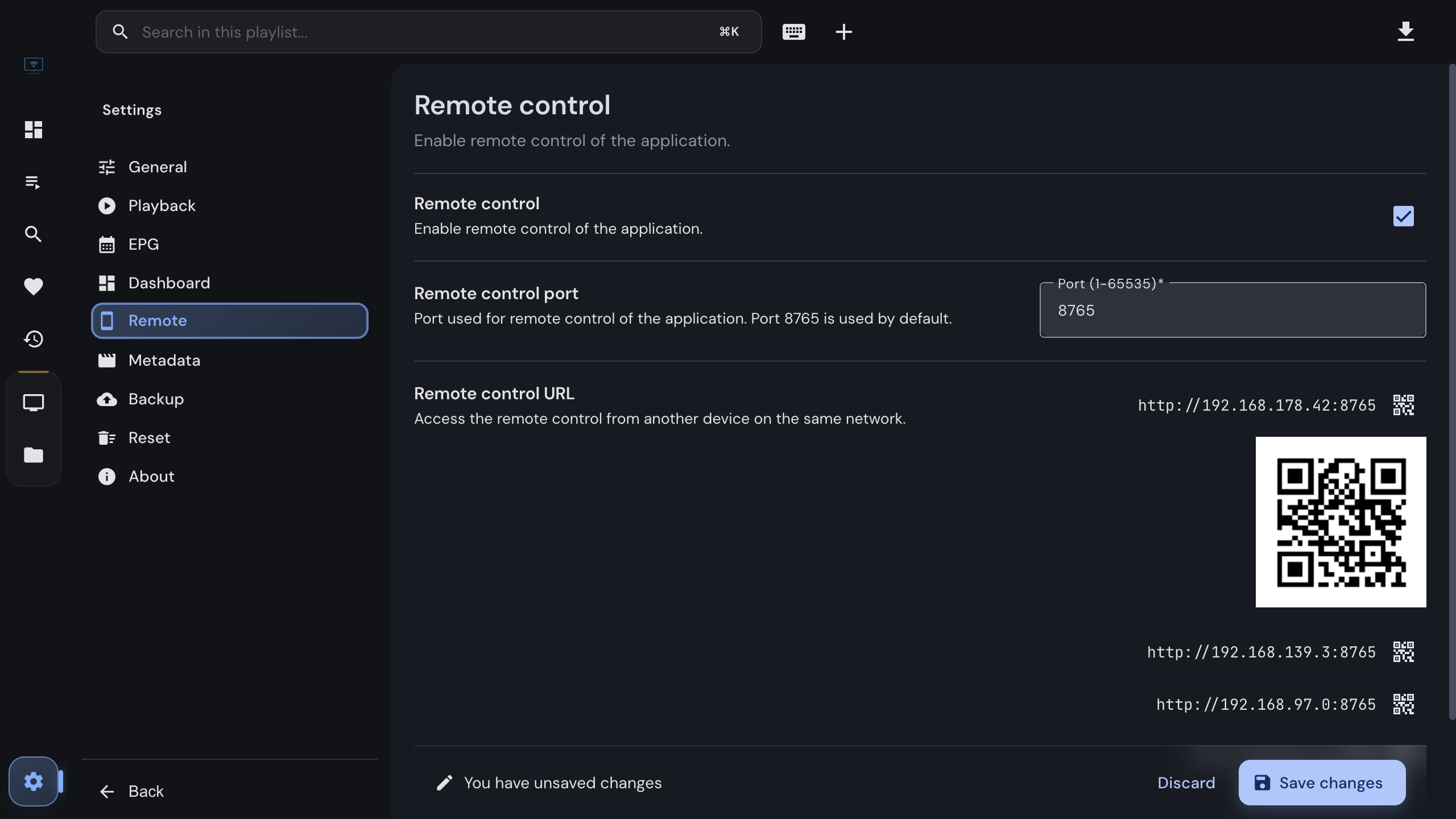
Open Settings and choose Remote control in the sidebar.
- 2
Switch Remote control on. The port field appears with 8765; change it only if another program uses that port.
- 3
Below the port, the app lists the addresses it can be reached at on your network. Click the QR icon next to one to show its code.
- 4
Save. The app starts serving the remote page right away; there is nothing to restart.
The address is your computer’s local IP address plus the port, for example
http://192.168.1.20:8765. Computers with several network adapters list several addresses;
the one on your home Wi-Fi is usually the 192.168. or 10. one.
Open it on the phone
Scan the QR code with the phone camera, or type the address into the browser. The remote opens as a plain web page; nothing is installed and no account is created.
Make it feel like an app
Use “Add to Home Screen” in your phone browser. The remote then opens full screen from its own icon, without the address bar.
What the remote does
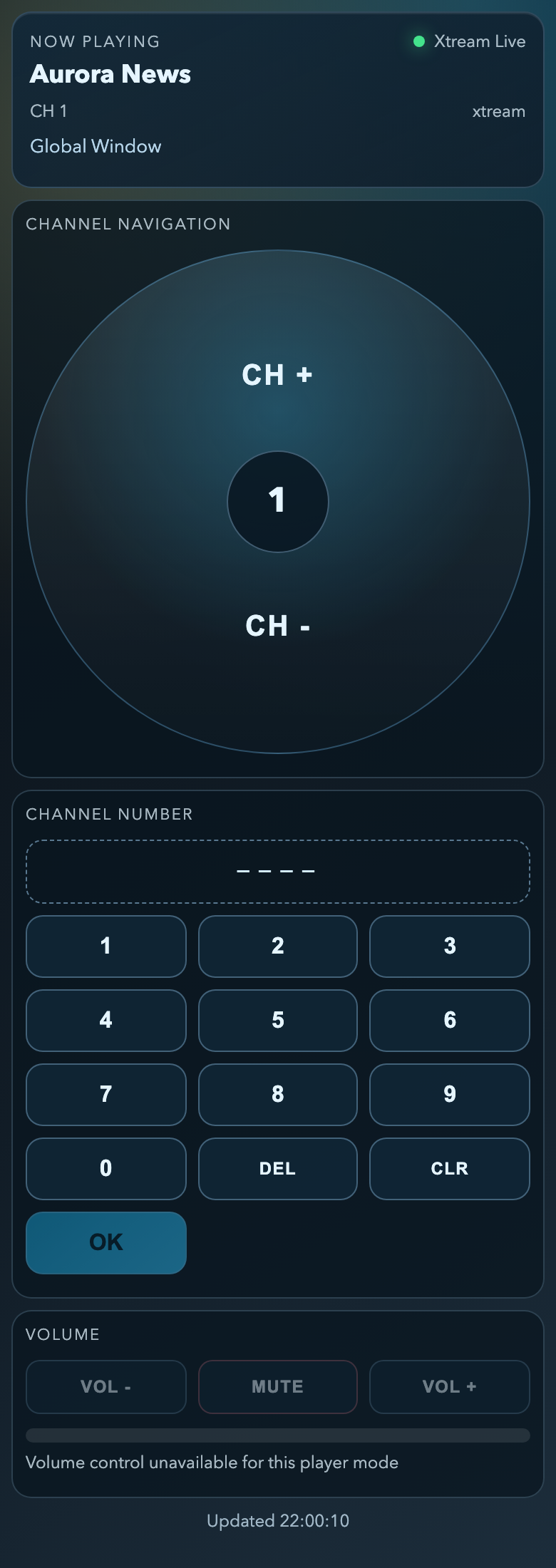
- Now playing shows the source, the channel name and its number, and the current program from the guide. It refreshes every two seconds, so a channel changed on the computer appears on the phone right after.
- CH ↑ and CH ↓ step through the list the app is showing: the whole playlist in the M3U player, the selected category in an Xtream or Stalker source, the filtered list in favorites, recent and the global collections.
- Number pad jumps to a position in that list, the way a set-top box remote does. Type the number and press OK. The number is the one shown next to the channel in the sidebar, not a channel number from a provider’s guide.
- Volume works for the built-in players in the M3U player. Everywhere else the buttons are disabled, and the page says so under the meter.
Keep the list in view
The remote navigates what the app currently shows. Open the source and the category you want to zap through on the computer first; a remote command on a movie page or the dashboard has nothing to act on.
When the page does not load
Work down this list; one of these covers almost every case.
- Same network. Phone and computer must share a Wi-Fi, and it must not be a guest network that isolates its clients from each other.
- Firewall. Windows asks whether to allow the app through the firewall the first time the remote starts; if that prompt was dismissed, allow the port in the firewall settings. macOS users with the firewall on need to allow incoming connections for IPTVnator.
- VPN. A VPN on the computer or the phone usually routes traffic away from the local network. Pause it while you use the remote.
- Several addresses. If the settings list more than one, try the others. Docker, VPN and virtual-machine adapters show addresses the phone cannot reach.
- Port taken. If another program already uses the port, change it in the settings and save; the address and the QR code update with it.
Keep it local
The remote has no password and no encryption; it trusts the network it runs on. That is fine on a home Wi-Fi and not fine anywhere else: do not open the port on your router, and turn the remote off in the settings when you use the computer on a network you do not control.
Related
The feature page with the full list of controls and answers.
The source whose built-in player also takes volume from the remote.
The desktop app for Windows, macOS and Linux.
FAQ
Frequently asked questions
Do I need to install an app on my phone?+
No. The remote is a web page that the IPTVnator desktop app serves on your local network. Open the address from the settings, or scan its QR code, in any phone or tablet browser. Adding the page to the home screen gives it an icon like an app.
Does the remote work away from home?+
No, and it should not. The page is meant for the Wi-Fi your computer is on and has no login or encryption. Do not forward the port through your router; anyone who could reach it could change channels on your player.
The page does not load on my phone. What should I check?+
That both devices are on the same network and not on a guest Wi-Fi that isolates clients, that a VPN on either side is off, and that the computer's firewall allows the port, 8765 unless you changed it. When the settings list several addresses, try each; a machine with Docker or a VPN adapter shows addresses that lead nowhere.
What does a channel number mean on the remote?+
The position in the list the app is showing right now, counted from one, the same number the sidebar shows next to the channel. It is not the number a provider may print in its guide.
Why are the volume buttons greyed out?+
The remote can change the volume only for the built-in players in the M3U player. Xtream and Stalker views and the favorites and recent collections currently pass channel commands only, and MPV, VLC and Embedded MPV keep their own volume.
Can several phones use the remote at once?+
Yes. Every page that is open polls the same status and sends the same commands; the last command wins.
Does it work with the browser version of IPTVnator?+
No. Only the desktop app on Windows, macOS or Linux can host the small web server behind the remote.
Which sources can I control?+
Live TV from M3U playlists, Xtream Codes and Stalker portals, Stalker radio, and the favorites, recent and global collections. Movies and series are not part of the remote.
Comments
Comments are hosted in GitHub Discussions. Loading them contacts giscus.app and github.com; nothing is requested from them until you choose to.