
How to Add an Xtream Codes Account to IPTVnator
Connect an Xtream Codes API provider to IPTVnator step by step. What the server URL, username and password are, how to test the login, how to paste the message from your provider, and what to do when the portal refuses to connect.

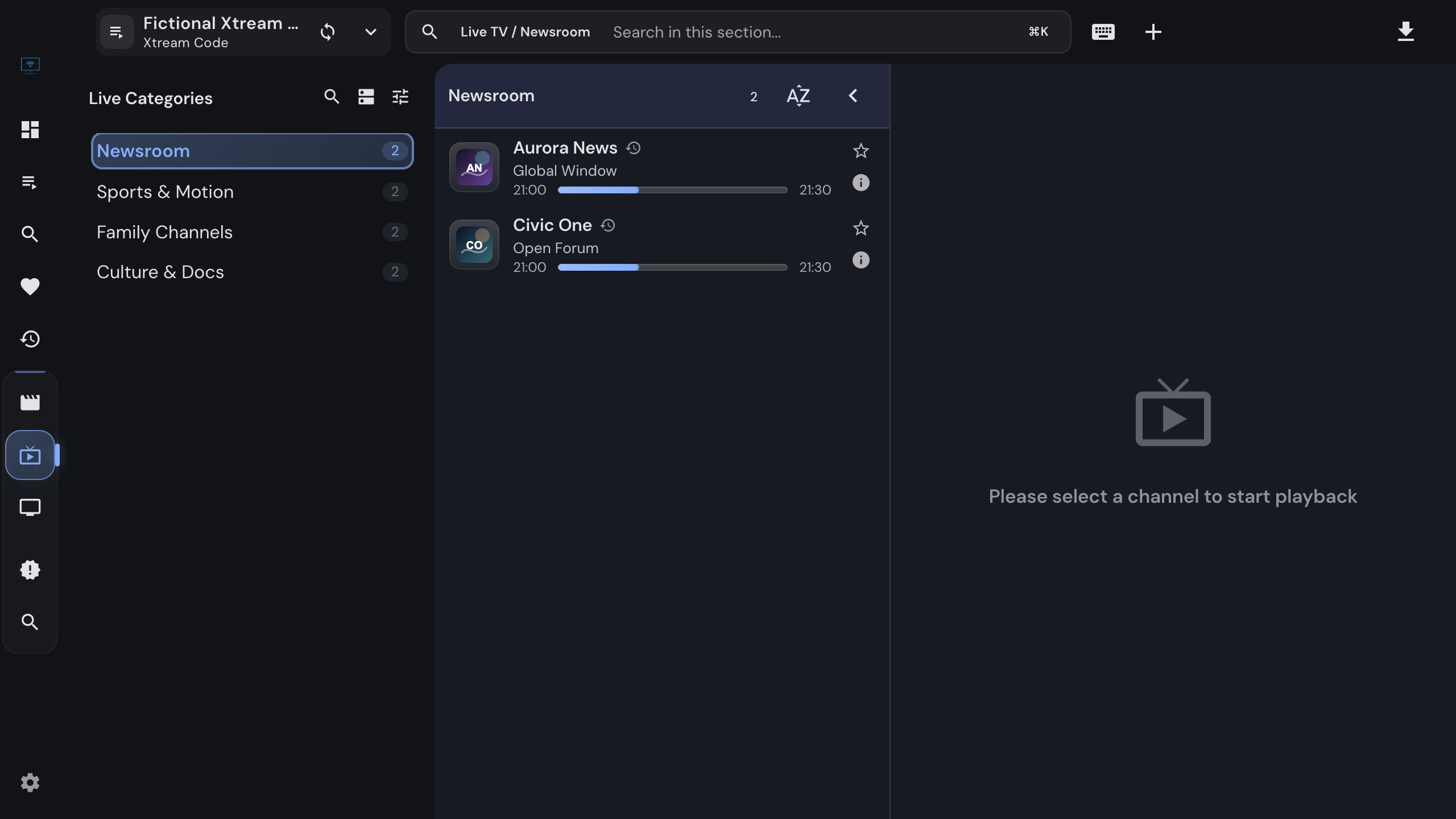
Most IPTV providers hand out three pieces of data: a server URL, a username and a password. That trio is an Xtream Codes account, and it is the richest way to connect a provider to IPTVnator. Instead of a flat channel list you get live TV, movies and series with posters and descriptions, a program guide, catch-up where the provider offers it, and an account page that tells you when the subscription ends.
This guide walks through adding such an account in IPTVnator, checking that it works, and fixing the usual problems. It applies to the desktop app on Windows, macOS and Linux and to the self-hosted browser version.
IPTVnator is a player, not a service
It does not include channels, playlists or accounts. The credentials in this guide come from the provider you already have a contract with.
What you need from your provider
| Field | What it looks like | Notes |
|---|---|---|
| Server URL | http://tv.example-provider.net:8080 |
Scheme, host and port. Some panels live under a subpath such as /panel; keep it. |
| Username | janedoe |
Case-sensitive. |
| Password | s3cret |
Case-sensitive. |
Providers rarely label the data this cleanly. Often you receive one long link that ends in
get.php or player_api.php with the username and password inside the query string. That link
is enough: the part before /get.php is the server URL, and the two query parameters are your
credentials. IPTVnator can read them out of the link for you, as shown below.
Add the account
In IPTVnator
- 1
Open the Add playlist dialog. You will find the button on the dashboard, in the header playlist switcher, and in the command palette under "Add Xtream Codes playlist".
- 2
Choose the "Xtream credentials" method.
- 3
Fill in a playlist title of your choice, the server URL, the username and the password.
- 4
Click "Test HTTPS and HTTP". IPTVnator asks the portal for the account status and shows the result under the server URL. If an `https://` address refuses the connection or does not speak HTTPS, the test retries the same address over plain HTTP once, which is why the dialog warns that your username and password may travel unencrypted.
- 5
Click "Add playlist". IPTVnator downloads the categories for live TV, movies and series and opens the new source.
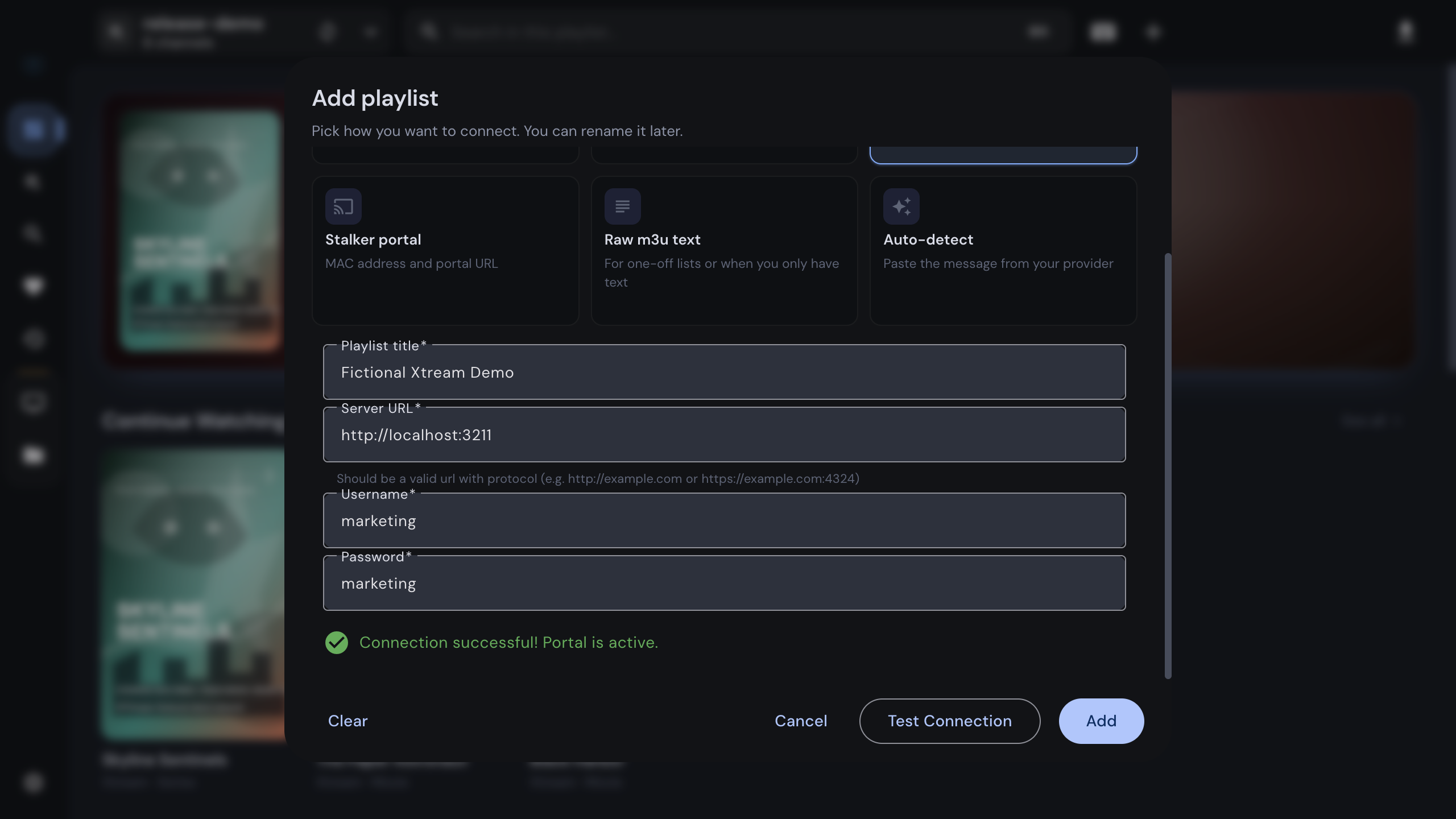
Connected. The portal is active. is the result you want; Connected using HTTP means the
same over an unencrypted connection, after the HTTPS attempt failed and the server URL was
switched to http://. The subscription has expired and The account is inactive or the
credentials are incorrect mean the portal answered but refuses the account: check the
credentials, then the subscription with your provider. Could not reach the server means no
answer at all: a typo in the server URL, a wrong port, or a host that is down. The remaining
messages name what went wrong instead: a failed secure connection, an HTTP error status, or a
server that answered without valid account information.
Paste the whole link
If you paste a complete get.php or player_api.php link into the Server URL field while the
username and password fields are still empty, IPTVnator cuts the link down to the server
URL and fills in the credentials from the query string. Trailing slashes and surrounding
whitespace are removed as well.
Or paste the message from your provider
Provider messages are messy: a link, a username and a password somewhere in a chat message or an email, sometimes dressed up in fancy Unicode letters to get past spam filters. The Auto-detect method in the same dialog takes the whole message and finds the source for you.
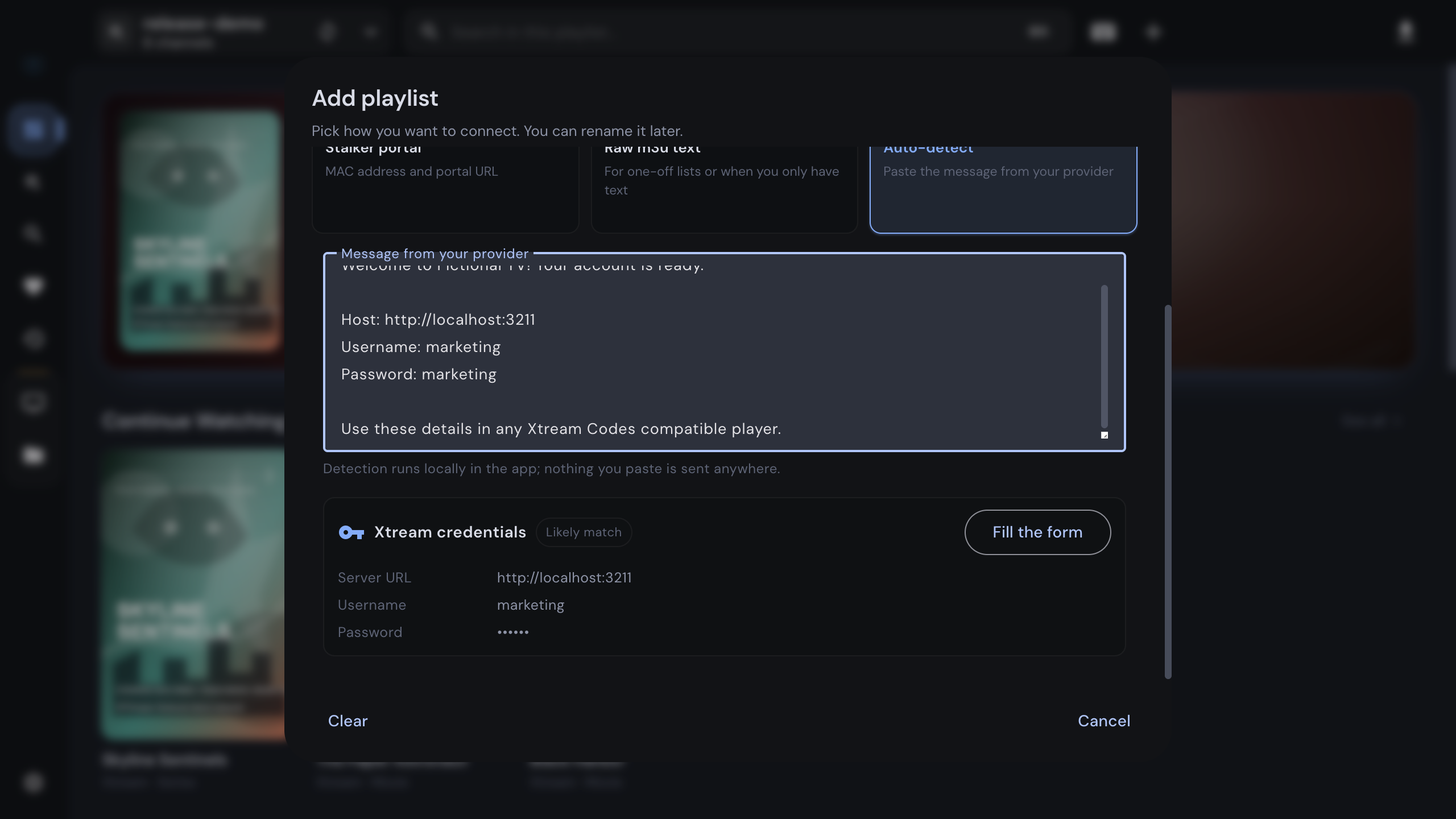
Paste everything, then click Fill the form on the candidate that looks right. IPTVnator switches to the matching method with the fields pre-filled, and you continue with the connection test as above. Detection runs inside the app; nothing you paste is sent anywhere.
The detector ranks what it finds: a MAC address means a Stalker portal, a get.php or
player_api.php link means Xtream Codes, a labeled username and password without a MAC
address leans Xtream, and a link ending in .m3u or .m3u8 is a plain playlist URL. It never
invents or “fixes” a value, so a password that is almost right stays wrong, and the connection
test remains the authority on whether the account works.
After the import
Right after you click Add, IPTVnator syncs the catalog: the categories for live TV, movies and series, then their content. A progress panel shows what is being fetched. On the desktop app the result is stored in a local library, so the next time you open the source it appears instantly and only changed data is downloaded.
The source gets its own sidebar with these sections:
- Live TV: categories on the left, channels with the current program and a progress bar, the player and a timeline of the schedule. Channels that the portal marks as archived carry a Catchup available badge with the number of days, and past programs play straight from the timeline.
- Movies and Series: poster grids per category, a detail page with description, cast, trailer and similar titles, resume positions, watched markers, and on the desktop app a download button for offline viewing.
- Search, Favorites, Recent and Recently added for the source. Global favorites, recent items and search on the dashboard combine all your sources.
- Discover, when TMDB metadata is enabled in the settings: browse the portal by year, genre and country.
Program guide
Xtream portals ship their own schedule, so the guide works without any extra setup. If a channel shows no program information, the portal did not provide any for it. The desktop app additionally uses XMLTV sources configured under Settings › EPG as a fallback, and a right-click on a channel offers “Map EPG channel” to link it to an XMLTV channel by hand.
Check the subscription
Open Account info from the playlist switcher in the header (the menu next to the source) or from the source card on the dashboard. The dialog shows the account status, the expiry date, active and maximum connections, whether the account is a trial, the stream formats the portal allows, and the server details. The source card on the dashboard also carries a small expiry chip that turns amber during the last week of the subscription.
Keep the catalog fresh
Providers add and remove content all the time. Refresh Xtream playlist from remote in the source menu downloads the categories and content again while keeping your favorites, watch history, hidden categories and playback positions. To change the server URL or credentials after a provider migration, open the playlist details of the source and edit them there; the next request uses the new connection.
Troubleshooting
- Unauthorized, Account inactive or Account expired after the import worked before: the portal now rejects the credentials. Open Account info, then check the subscription with your provider or correct the credentials in the playlist details.
- Portal not found: the server URL is wrong. It must start with
http://orhttps://, carry the right port, and keep any subpath the provider uses. Try the exact host from the link you were given. - Portal unavailable: the host did not answer. Check your network or VPN, then use Retry. After two failed connection attempts IPTVnator pauses requests to that host for 30 seconds to keep the app responsive; a manual retry lifts the pause immediately.
- The catalog loads but streams do not play: the built-in web players cannot decode every
codec. Open the stream in MPV or VLC via Settings › Playback, or enable the experimental
embedded MPV engine. Settings › Playback also has a Stream Format option for Xtream
live streams;
autopicks HLS when the portal allows it and falls back to MPEG-TS. - Streams stop after a few seconds or refuse to start on a second device: the account’s connection limit is reached. Account info shows the active and maximum connections.
- The provider blocks the app: some panels only answer clients with a specific User-Agent. On the desktop app you can set one in the playlist details; otherwise IPTVnator identifies itself with a common IPTV player signature.
Related
Windows, macOS and Linux builds, package managers and the browser version.
The MAC-address way of connecting a provider.
Plain playlists, refresh options and XMLTV guides.
FAQ
Frequently asked questions
Is an Xtream Codes login the same thing as an M3U link?+
Usually both come from the same account. An M3U link that contains get.php with username and password in its query string is generated by an Xtream Codes panel, so you can add it as Xtream credentials instead. You get the same channels plus movies, series, provider metadata, EPG and catch-up, which the flat M3U file cannot carry.
Where do I find my Xtream server URL?+
It is the host part of any link your provider gave you, including the scheme and the port, for example http followed by the hostname and a port number. If you only have a get.php or player_api.php link, paste it into the Server URL field. IPTVnator strips the endpoint and reads the username and password from the query string.
Can I use the same Xtream account on several devices?+
Your provider decides that through the connection limit of the account. The Account info dialog in IPTVnator shows the active and maximum connections. Playing on more devices than allowed produces authentication errors or streams that stop after a few seconds.
Does IPTVnator show a program guide and catch-up for Xtream channels?+
Yes. IPTVnator asks the portal for the schedule of each channel and shows the current program in the channel list and a timeline under the player. Channels that the portal marks as archived get a catch-up badge, and past programs can be played from the timeline. On the desktop app, XMLTV sources configured in the settings are used as a fallback.
Can I add more than one Xtream account?+
Yes. Every account becomes its own source with separate favorites, history and cached catalog. The dashboard and the playlist switcher in the header list all of them, and global favorites, recent items and search work across sources.
Where are my credentials stored, and are they sent anywhere else?+
Credentials stay on your device, in the local database of the desktop app or in browser storage of the web version, and are only sent to the server URL you entered. IPTVnator has no account system and no analytics. The self-hosted web version routes requests through your own backend container.
My provider only gave me a MAC address and a portal URL. Is that Xtream Codes?+
No, that is a Stalker or Ministra portal. Choose the Stalker portal method in the same Add playlist dialog. The Auto-detect method recognizes a MAC address in the pasted message and pre-fills the Stalker form for you.
Comments
Comments are hosted in GitHub Discussions. Loading them contacts giscus.app and github.com; nothing is requested from them until you choose to.