
Back Up Your Playlists and Move to a New Computer
Export and restore an IPTVnator playlist backup, understand which favorites and playback state it carries, and check what needs to be moved separately when changing computers.

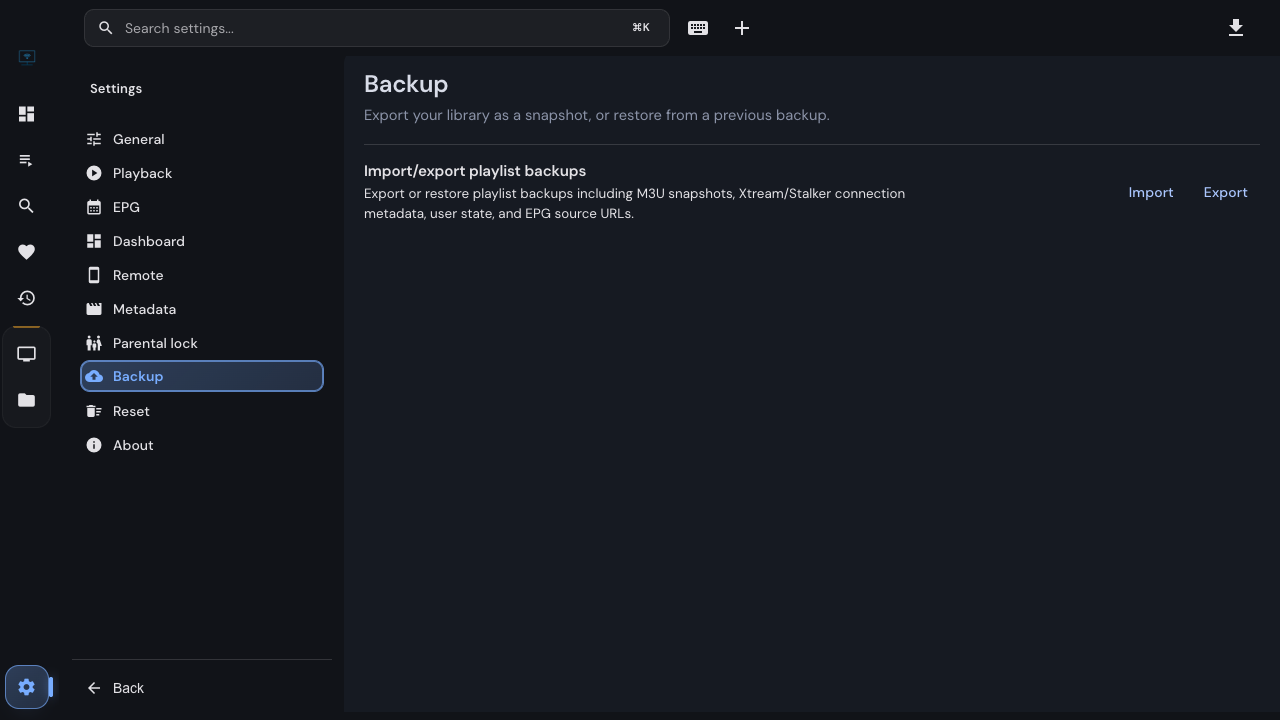
Adding a source takes a moment. Rebuilding favorites, hidden categories and playback positions takes longer. A playlist backup keeps the supported parts of that library together so you can restore them after a problem or move them to another computer.
This guide describes the versioned backup available in IPTVnator 0.24. Its scope varies by source type, so check the table below before relying on it as your only copy of data.
IPTVnator is a player, not a service
Export before changing anything
- On the computer with the library you want to keep, open Settings → Backup.
- Under Import/export playlist backups, choose Export.
- Save the JSON file. The suggested name includes the export date, for example
iptvnator-playlist-backup-2026-10-04.json. - Keep a copy outside the app’s own data folder. If you are moving computers, transfer it through a location you control.
Export the receiving computer’s library too if it already has sources and favorites you care about. Restoring a snapshot can replace saved state for a matching source; preserving both backups gives you a record of each library before the import.
Settings → Backup contains both actions: Export creates the backup; Import restores it.
What travels in the file
| Source or data | Included | Separate or rebuilt later |
|---|---|---|
| M3U | Playlist text, source information, favorites, recent items and hidden groups | Media files referenced by local paths |
| Xtream | Connection details, favorites, recent items, hidden categories and playback positions | The downloaded catalog cache and offline media |
| Stalker | Connection and device details, favorites and recent-item snapshots | Active login sessions and playback positions in backup format v1 |
| Global EPG | Configured source addresses | Imported programme data and local XMLTV files |
| App preferences | The EPG addresses above | Other settings, including player and appearance choices |
An M3U backup includes the playlist text even if the original playlist came from a local file. It does not include the video files those entries may point to. Paths that worked on one computer may need updating on another.
The export includes connection credentials. Store it as private data, not as an attachment to a public support thread. If a report needs an example playlist, prepare a separate redacted example rather than sharing your backup.
Restore on the destination
- Install a current supported version of IPTVnator on the destination computer.
- Open Settings → Backup, choose Import, and select the exported file.
- Read the summary: it reports sources that were imported, merged, skipped or failed.
- Open each restored source and let any required catalog initialization finish.
- Check a few favorites, recent items and, for Xtream, a saved playback position.
Xtream restores may need the catalog to load before saved items can be matched to their content. An imported source appearing in the list does not mean every catalog operation has already completed.
Stalker connects again using its restored source definition rather than transferring a running session. The provider’s device and connection rules still apply on the destination.
Understand what “merged” means
The importer recognizes sources from their connection identity. An M3U URL, an Xtream server and username, or a Stalker portal and MAC address can identify an existing source. For an M3U without a URL, the playlist content provides the match.
When an entry matches, the existing source is updated and its backed-up user state is applied. This is not a promise to combine every favorite from two different points in time. For example, importing an older snapshot can replace changes made after that snapshot.
Move the remaining pieces deliberately
Downloaded movies, episodes and recordings are not inside the JSON file, nor does importing a playlist backup recreate the Downloads library. Keep the media separately and do not assume that copying files alone registers them in the new app’s download manager.
Move local XMLTV files separately and select their new locations. Reapply other preferences, such as the selected player and update channel, on the destination.
A backup is also separate from recovery of sources missing after an older upgrade. If data has unexpectedly disappeared, first record the versions and what happened; repeatedly importing snapshots can make it harder to tell which state you are examining.
Related
FAQ
Frequently asked questions
Is a playlist backup a complete copy of the app?+
No. It contains playlist definitions, supported playlist-specific user state and global EPG source addresses. It does not include the full settings profile, cached catalog and EPG data, or downloaded media.
Are favorites included?+
Yes. M3U, Xtream and Stalker entries include their supported favorites and recent-item state. Xtream also carries playback positions and hidden categories; Stalker playback positions are not included in the version 1 backup format.
Does importing the same source create a duplicate?+
A source the importer recognizes is merged with the existing entry. Its saved playlist state is restored from the backup, so this is not simply an additive merge of every old and new favorite. Unmatched sources are created as new entries.
Does the backup include my provider password?+
The current export includes connection secrets so sources can be restored. Playlist and EPG URLs can also contain credentials. Treat the JSON file as private account data and do not attach it to a public issue.
Can I import an old raw JSON playlist dump?+
The current importer expects a versioned IPTVnator playlist backup, not the older raw array of playlists. Use a backup exported through the current Settings → Backup workflow.
Comments
Comments are hosted in GitHub Discussions. Loading them contacts giscus.app and github.com; nothing is requested from them until you choose to.