
Stable or Nightly? How IPTVnator Updates Work
Choose an update channel in the desktop app, understand what happens when you switch back to Stable, and find the build details that make a nightly bug report useful.

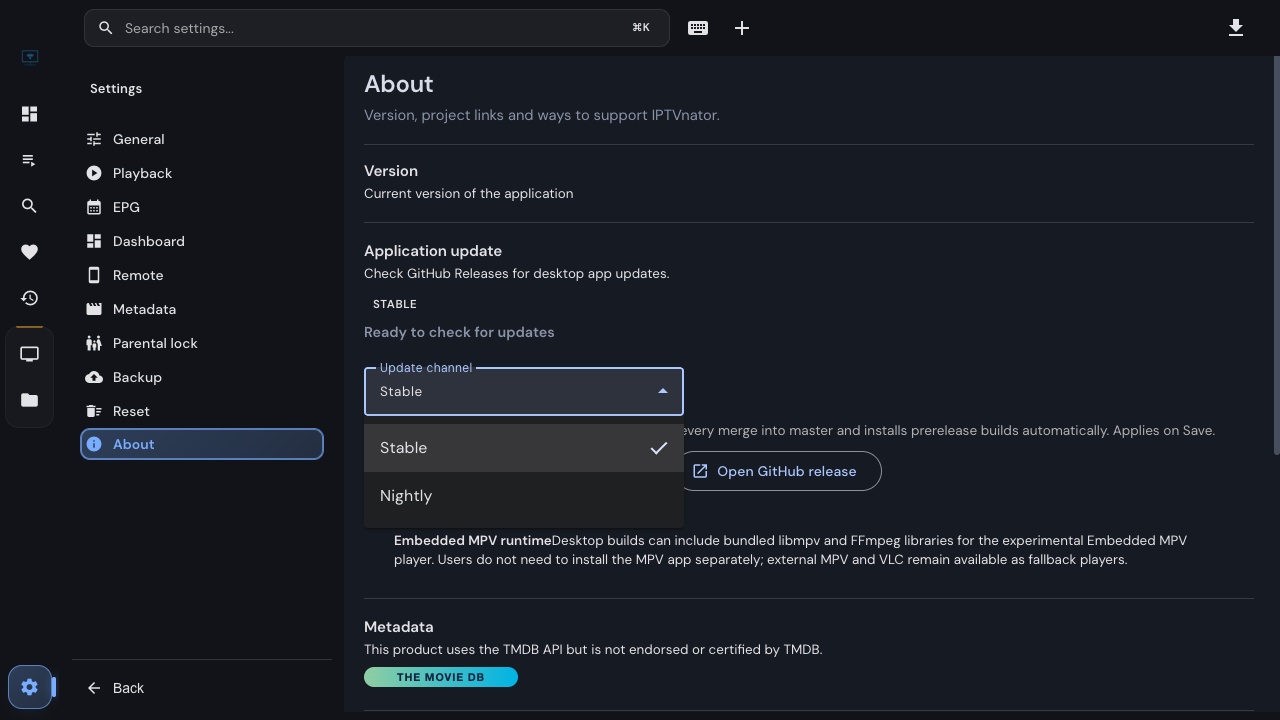
Stable releases collect changes into a version intended for everyday use. Nightly builds let you try work merged since then. Since IPTVnator 0.24, the desktop app lets you choose between those channels in Settings → About.
The choice controls where the app looks for updates. It does not create a second library or an isolated testing profile: a nightly uses the data of the app you update.
IPTVnator is a player, not a service
Choose the channel that matches your use
| Channel | A good fit when… | What to expect |
|---|---|---|
| Stable | You mainly want to watch and update at release time | Tagged releases; this is the default |
| Nightly | You want to try a recent fix or help test development | Builds from merged development changes, including possible regressions |
Nightly can be useful when an issue you reported has been fixed but the next stable release has not arrived. Include the build you tested when replying to that issue: two people using “nightly” may be running different code.
The update-channel selector lives in Settings → About. Choose a channel here, then save the change.
Switch to Nightly
- Export a playlist backup from Settings → Backup and keep the file somewhere you can find it. A playlist backup does not include downloaded media or every app preference.
- Open Settings → About in the desktop app.
- Change Update channel from Stable to Nightly.
- Use Save and check for Nightly updates, or save the settings to apply the choice.
- Follow the update action shown for your installation. If the app offers a manual installation instead, use that path for your package format.
- After the update, open About again and check the installed version and build information.
An update result belongs to the channel that was checked. If you change the selection but have not saved it, the earlier “latest version” result does not tell you whether the newly selected channel has an update. Read the channel label next to the result.
If an update is already downloading or ready to install, changing the channel does not replace that download. The app identifies it as an update from the previous channel.
Switching back to Stable
Choose Stable and save. Future checks now use the stable channel, but the installed nightly stays in place until there is a newer stable release.
For example, a nightly between two stable releases can contain database changes that the older stable app does not understand. Automatically installing that older version would put your existing library at risk. The updater therefore waits for a stable version that can take you forward.
Treat the switch as “follow stable releases from now on.” It is not an undo button for the last update, and reinstalling an older executable is not a reliable way to reverse a data migration.
Installation format matters
The channel selector belongs to the desktop app. It does not update a self-hosted web server or its Docker image.
On desktop, follow the action About actually offers. Linux packages without AppImage have a manual-install path, and package-manager installations have their own update process. When asking for help, “Linux” alone is not enough: say whether you installed an AppImage, DEB, RPM, Flatpak, Snap, or another package.
Report the result so it can be reproduced
A useful report can be short:
Version/build: copy from About. OS and installation format: include both. Source/player: M3U, Xtream or Stalker and the selected player. Steps: what you opened and clicked. Expected: what should happen. Actual: what happened instead.
For update problems, say whether the build was not offered, failed to download, failed to install, or installed but behaved incorrectly. These are different points in the process. If the issue concerns missing favorites, also say whether it appeared immediately after the update or only after refreshing a playlist.
Related
FAQ
Frequently asked questions
Which update channel should I use?+
Stable is the default and suits everyday viewing. Nightly is for trying changes before the next stable release and helping test them. Nightly builds can introduce regressions.
Does choosing Nightly immediately change the installed app?+
Changing the selection does not install anything by itself. Save the setting, let the app check the chosen channel, and follow the update or manual-install action it offers.
Why am I still on a nightly after choosing Stable?+
The updater only moves forward. It keeps the installed nightly until a stable release with a newer version is available. Selecting Stable changes which channel is checked; it does not downgrade the app.
Does every Linux package update inside IPTVnator?+
No. The update flow depends on the installation format. Linux installations without AppImage use a manual-install fallback in the app. Package-manager installations should follow their package manager's update process.
What details should I include when reporting a nightly problem?+
Include the full version and build commit from About, your operating system, installation format, player and source type, and the shortest steps that reproduce the problem. Do not post account credentials or full playlist URLs.
Comments
Comments are hosted in GitHub Discussions. Loading them contacts giscus.app and github.com; nothing is requested from them until you choose to.