
Subtitles, Quality and Picture-in-Picture: Get More from the Player
Use IPTVnator's unified player controls to choose stream quality, load subtitles, adjust their timing and keep video visible in picture-in-picture. Learn why some options depend on the stream or player.

Subtitles arrive a little late. A stream offers several qualities, but the connection is struggling with the highest one. You want to keep an eye on a programme while using another window. These are all tasks you can handle from the player controls.
Since 0.23, HTML5, Video.js and ArtPlayer use IPTVnator’s unified controls by default. The buttons look consistent across those players, while the available options still depend on what the current stream and playback engine support.
IPTVnator is a player, not a service
Start with unified controls
Open Settings → Playback and check Unified controls for web players. With it enabled, the three built-in web players share their control bar. Turning it off restores each player’s own controls, so the steps below may no longer match what you see.
Move the pointer over a playing video to reveal the controls. On touch, tap the video to show or hide them. A missing button often means that the current stream cannot offer that action, rather than that a setting has been lost.
Choose a quality the stream actually provides
Open Quality when the menu is available. Auto lets the engine select a rendition; a label such as 720p or 1080p pins one of the variants supplied by the stream.
If playback repeatedly stalls, try a lower available quality and watch whether it becomes smoother. That is a useful comparison, not a diagnosis by itself: interruptions can also come from the source or decoding path.
A provider may list separate “HD” and “SD” channels rather than offering both qualities inside one stream. In that case, change the channel or source. The quality menu cannot create a rendition that was never supplied, and choosing 1080p cannot turn a lower-resolution source into native 1080p video.
Quality selection is a session choice. Check the menu again after starting another stream instead of assuming the previous selection still applies.
Load a subtitle file
- Start the movie or episode you want to watch.
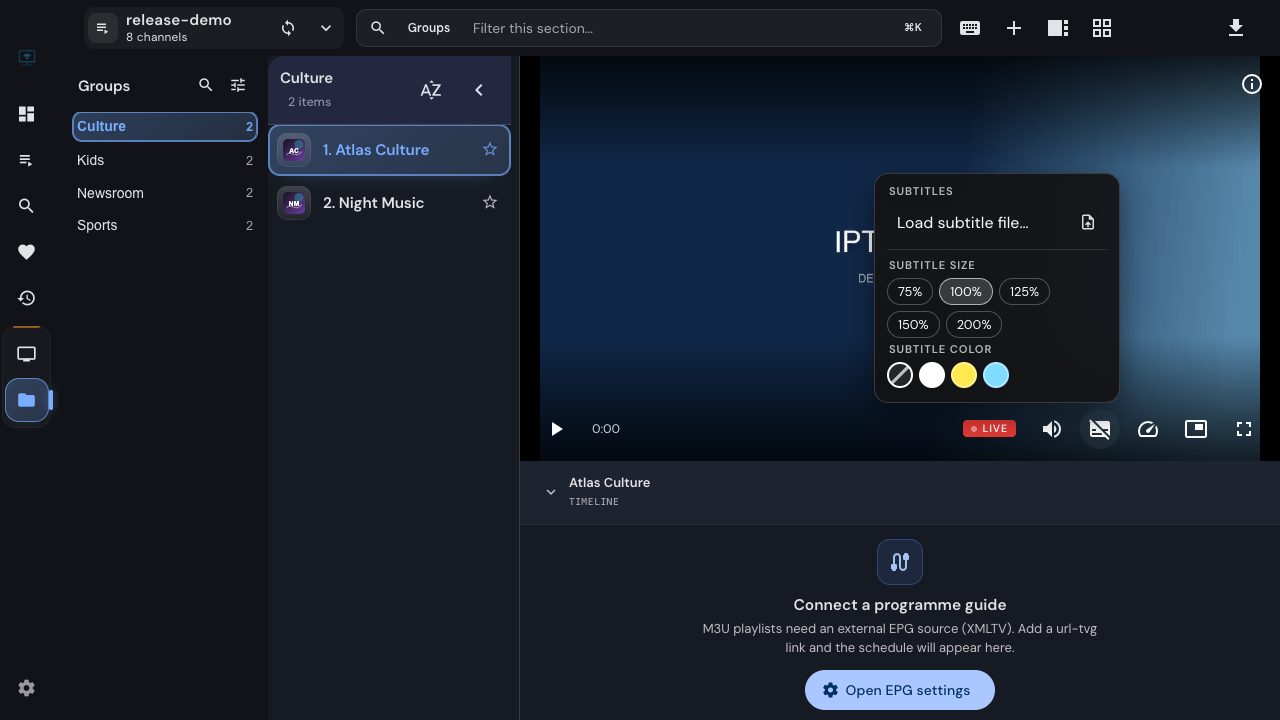
- Open Subtitles in the player controls.
- Choose Load subtitle file… and select an
.srtor.vttfile for the web players. - Select the loaded track if needed, then check a line of dialogue against the picture.
Embedded MPV accepts additional subtitle formats, including .ass. Use the player that
supports your file rather than simply changing its filename extension.
If the stream already includes subtitle tracks, you can choose one directly from the same menu. Off hides subtitles without removing the movie or changing the audio track.
Open Subtitles from the player control bar to load a subtitle file. Playback here uses a local demonstration stream.
Adjust timing and readability
For a selected external subtitle in the web players, use Show subtitles earlier or Show subtitles later. Each step moves the timing by half a second. Reset the delay when you want to return to the file’s original timing.
Test a few lines before making another adjustment. If the error grows as the film plays, a constant delay may not be enough: the subtitle file may belong to a different edit or timing version of the film.
The subtitle menu also offers text size and colour. Those appearance choices are saved for later sessions. Timing is separate and should be checked for each file. Styled ASS subtitles in MPV can retain their own embedded appearance.
Keep the video visible with picture-in-picture
On supported web-player playback, choose Enter picture-in-picture to put the video in a small floating window. Use the PiP window’s return control or the player’s exit action to bring it back.
The button appears only when the playback environment supports it. Embedded MPV does not offer this shared PiP action. The small preview above the M3U programme grid is a different layout: it remains inside the app and does not require PiP support.
Related
FAQ
Frequently asked questions
Why is there no quality menu?+
The menu appears when the stream exposes more than one video quality. A single video file or a channel with only one rendition has no alternatives for the player to select.
Which subtitle files can I load?+
The shared web-player controls accept SRT and WebVTT files. Embedded MPV also supports formats such as ASS, whose embedded styling may take precedence over the text-style controls.
Why can I adjust one subtitle track's timing but not another's?+
Timing support depends on the engine and track. In the shared web-player path, delay adjustment is available for the selected external subtitle file. Embedded MPV can apply delay to its subtitle tracks more broadly.
Does Embedded MPV support the picture-in-picture button?+
No. The shared picture-in-picture action belongs to supported web-player video playback. It is not available for Embedded MPV or external MPV and VLC windows.
Will my quality and subtitle choices be remembered?+
Subtitle text size and colour are saved. Manual quality selection and subtitle timing are session choices; do not assume they will carry over to the next stream. Auto is the default quality mode.
Comments
Comments are hosted in GitHub Discussions. Loading them contacts giscus.app and github.com; nothing is requested from them until you choose to.