
Why some streams need an external player
Why some IPTV streams do not play in IPTVnator's built-in browser players, and when MPV, VLC, or IINA is the right workaround.

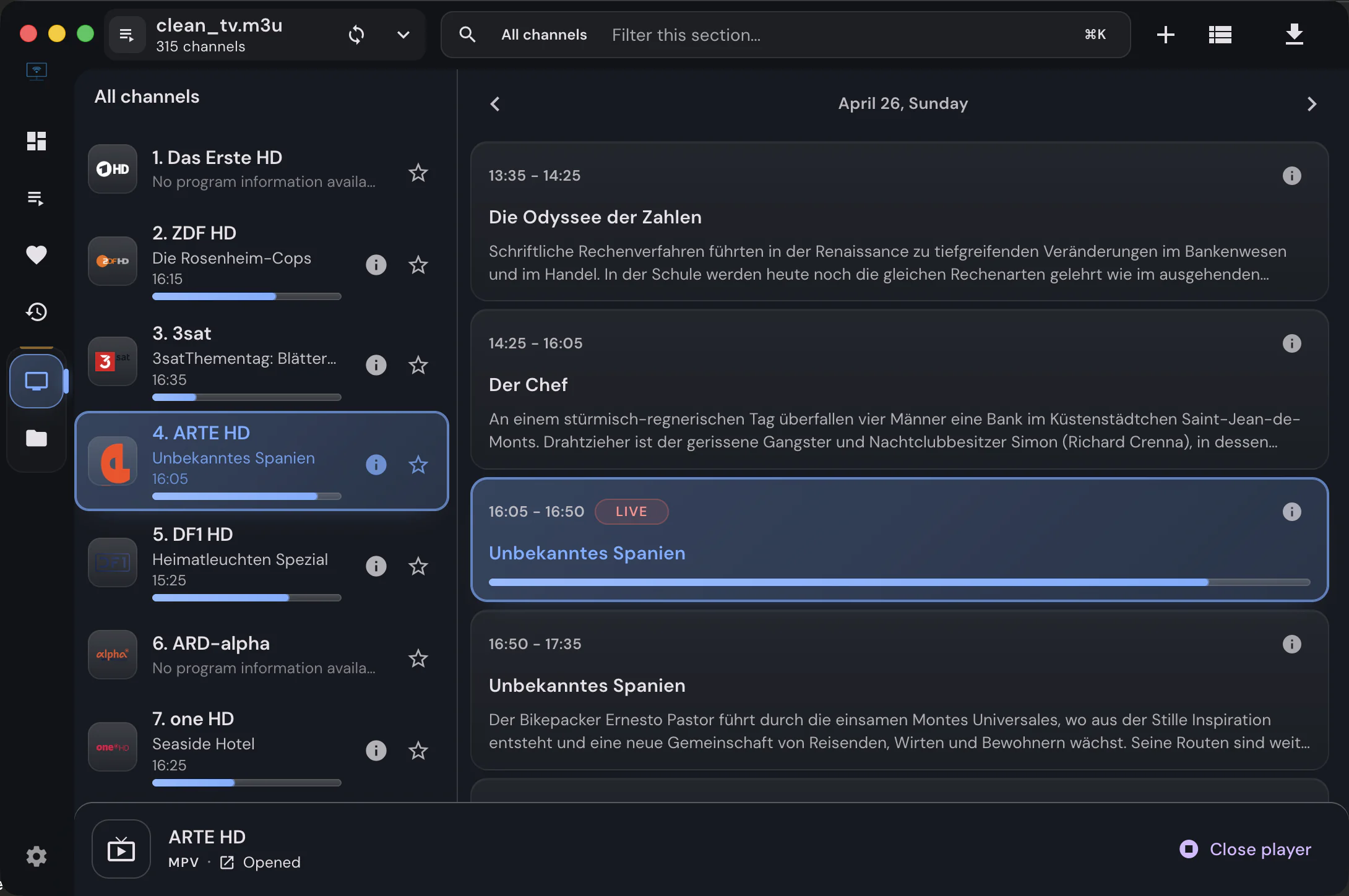
Some IPTV streams work perfectly in one player and fail in another. That can be confusing, especially when the same playlist opens in VLC, MPV, Kodi, or a TV app but does not start inside IPTVnator’s built-in players.
The short version: IPTVnator’s internal players run inside Electron/Chromium, so they inherit browser media support and browser security rules. That makes them convenient and integrated, but it also means they cannot play every codec, container, protocol, DRM setup, or stream variant that a native media player can handle.
External MPV, VLC, and IINA support exists for streams that need a stronger native playback engine.
IPTVnator is a player, not a content provider
IPTVnator does not provide, sell, host, or redistribute any playlists, channels, subscriptions, portals, EPG data, or streams. It is only a media player for sources provided by the user. Please use it only with content you are authorized to access, and do not share private playlist URLs or credentials in public bug reports.
Why the built-in players may fail
The built-in Video.js, ArtPlayer, and HTML5-based players are browser-based. They are great for many HLS and web-friendly streams, but they are still limited by what Chromium can decode and what the browser playback stack allows.
Common cases where this matters:
- unsupported audio codecs such as AC3 or MPEG audio in some streams;
- video formats such as MPEG-TS, HEVC/H.265, high-bitrate 4K, or unusual HLS variants;
- DASH/MPD, DRM-protected, or provider-specific streams;
- streams that require behavior normally handled by a full native media player;
- platform-specific Chromium/Electron differences between Windows, Linux, macOS, and the web app.
When this happens, the playlist itself may be valid and the stream may still work in VLC or MPV. That does not always mean IPTVnator can make the internal browser player decode it.
New in version 0.22: playback diagnostics
Starting with IPTVnator 0.22, the app shows a clearer diagnostic screen when a stream cannot be played by the selected built-in browser player.
Instead of only showing a generic media error, IPTVnator can explain the likely reason, for example that the stream codec is probably unsupported by the Chromium player. The diagnostics view can also show technical details such as the selected player, detected container, MIME type, native error code, and native browser error message.
When the problem looks like a browser-player limitation, IPTVnator offers quick actions to open the same stream in external players such as MPV or VLC, plus an option to copy the stream URL. This makes it easier to understand whether the issue is a playlist/source problem, an IPTVnator bug, or simply a codec/container that needs a native player.
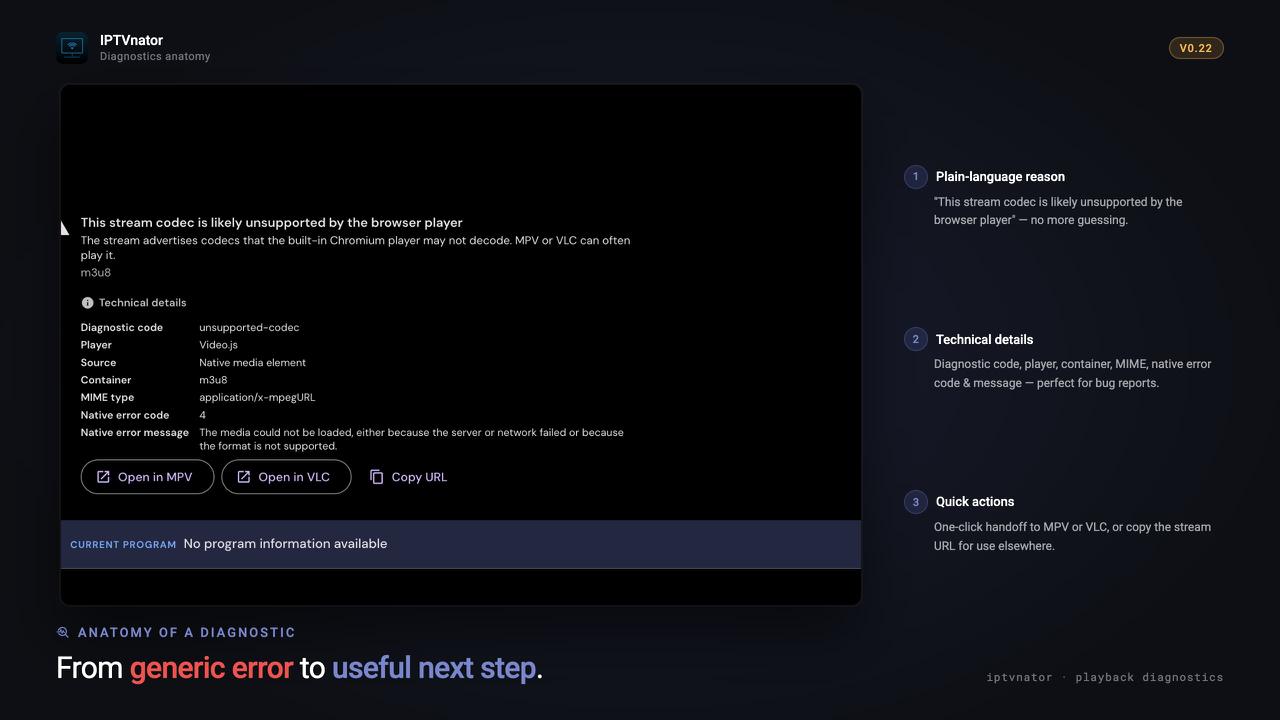
Playback diagnostics turn a generic media error into a plain-language reason, useful technical details, and clear next steps.
This diagnostic flow was introduced in PR #939.
The recommended workaround: use an external player
This is exactly why IPTVnator supports external players.
If a stream does not work in the built-in player, try opening it with:
- MPV — lightweight, powerful, and very codec-friendly;
- VLC — widely installed and handles many IPTV edge cases;
- IINA — a macOS-friendly player based on MPV.
External players use their own native playback engines instead of Chromium’s media stack. For many streams, that is the simplest and most reliable solution.
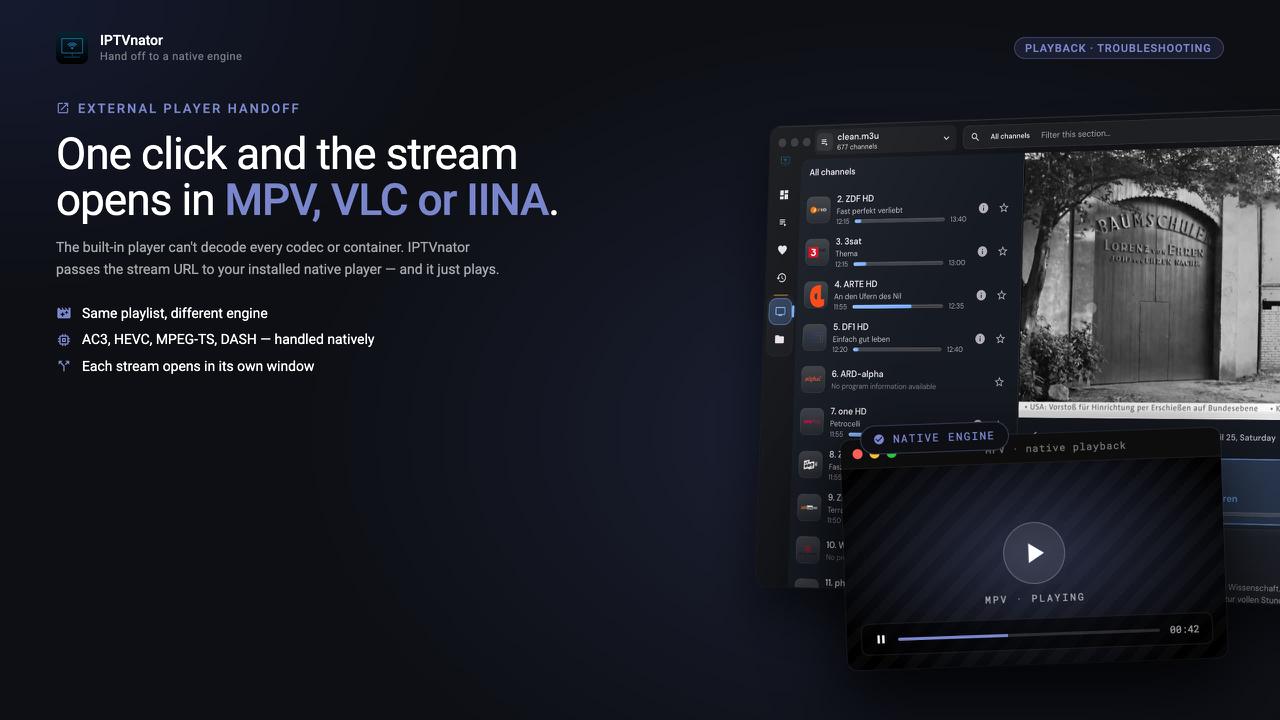
With one click, IPTVnator can hand the same stream URL to MPV, VLC, or IINA so a native playback engine can handle it.
Another benefit: multiple streams at once
External players are also useful when you want more control over your desktop.
Because MPV, VLC, or IINA open their own windows, you can start multiple streams in parallel and arrange them however you like: side by side, on another monitor, in a corner of the screen, or across a multi-display setup.
That workflow is especially useful for monitoring several live channels at the same time.
When should I report an issue?
Please still report playback problems when they look like IPTVnator bugs, but include enough detail to separate app issues from stream compatibility limits:
- IPTVnator version;
- operating system;
- selected player: Video.js, ArtPlayer, HTML5, MPV, VLC, IINA, or embedded MPV;
- stream type if known: HLS, MPEG-TS, DASH/MPD, live TV, VOD, series;
- whether the same stream works in VLC, MPV, IINA, or another player;
- any visible error message.
Do not post private streams publicly
If your playlist URL contains credentials, tokens, a private portal address, or subscription details, do not paste it into a public GitHub issue. Share a public sample stream when possible, or describe the format and error instead.
Useful links
Get the latest desktop builds for macOS, Windows, and Linux.
Support continued IPTVnator development.
Send a one-time tip if IPTVnator is useful to you.
Include OS, IPTVnator version, selected player, and stream type.
Ask quick questions and compare player settings with other users.
Summary
IPTVnator will keep improving the built-in playback experience, but no Electron/Chromium-based player can guarantee support for every IPTV stream in the wild.
If a stream fails internally but works in VLC, MPV, or IINA, using an external player is not a hack — it is one of the intended playback paths in IPTVnator.
Comments
Comments are hosted in GitHub Discussions. Loading them contacts giscus.app and github.com; nothing is requested from them until you choose to.