
Keep Your Library Tidy: Sources, Favorites and Watched Titles
Review source availability, return from a favorite channel to its playlist, mark titles watched and simplify catalog views in IPTVnator without confusing hidden items with missing data.

A library with several sources can become difficult to read even when everything works. You might see an old account beside an active one, a favorite without remembering its source, or a film you finished elsewhere still waiting to resume.
IPTVnator 0.23 and 0.24 add ways to handle those everyday details. Start with the view you are in, then review the saved source itself only when something actually needs changing.
IPTVnator is a player, not a service
First check whether the list is hidden
If a live channel is playing but its list has disappeared, look for Show channels list or the list toggle in the workspace header. A collapsed panel is a layout choice, not evidence that the playlist lost its channels.
Portal Live TV panels can collapse in steps: hide the categories while keeping the channel list, or hide both for more video space. With categories hidden, the list header offers a category selector, so you can still change the group of channels you are browsing.
In Favorites and Recently Viewed, also check whether the scope is This playlist or All playlists. A different scope can explain why an item is visible in one view but not another.
Find the source behind a favorite
While watching a live channel from Favorites or Recently Viewed, look for its playlist name in the programme panel. Click that source chip, or use Open in… from the channel’s right-click menu, to open the channel inside its original playlist.
In 0.24 this works for M3U, Xtream and Stalker live channels. It is useful when a favorite plays correctly and you want to browse neighboring channels, or when the same name exists in several sources and you need to know which copy you selected.
Read source availability as a check result
The desktop source list shows availability information for Xtream accounts, Stalker portals and M3U links. A result can tell you that an account is inactive or that a source could not be verified. Those are different situations.
A temporary connection failure is a reason to inspect or retry, not proof that the source should be removed. If several sources fail together, consider a shared network or VPN problem before deciding that every account has expired.
Review old sources together
- Export a playlist backup from Settings → Backup if you want a copy before deleting.
- On the desktop sources page, open Clean up inactive sources….
- Let the checks run. The dialog checks network sources across the library, even when the page behind it has a filter applied.
- Review both confirmed inactive accounts and uncertain results. Deselect anything you want to keep.
- Use Delete selected only for the sources you intend to remove, then read the per-source results.
Busy or playing sources can be skipped. A skipped row is not a successful deletion, and an uncertain result is not a confirmed expired account.
Deleting a source also removes its saved favorites, history and playback progress. Downloaded files are kept. Hiding a category or collapsing a panel is a better fit when your goal is simply to see less in the current view.
Keep watch state in step with what you finished
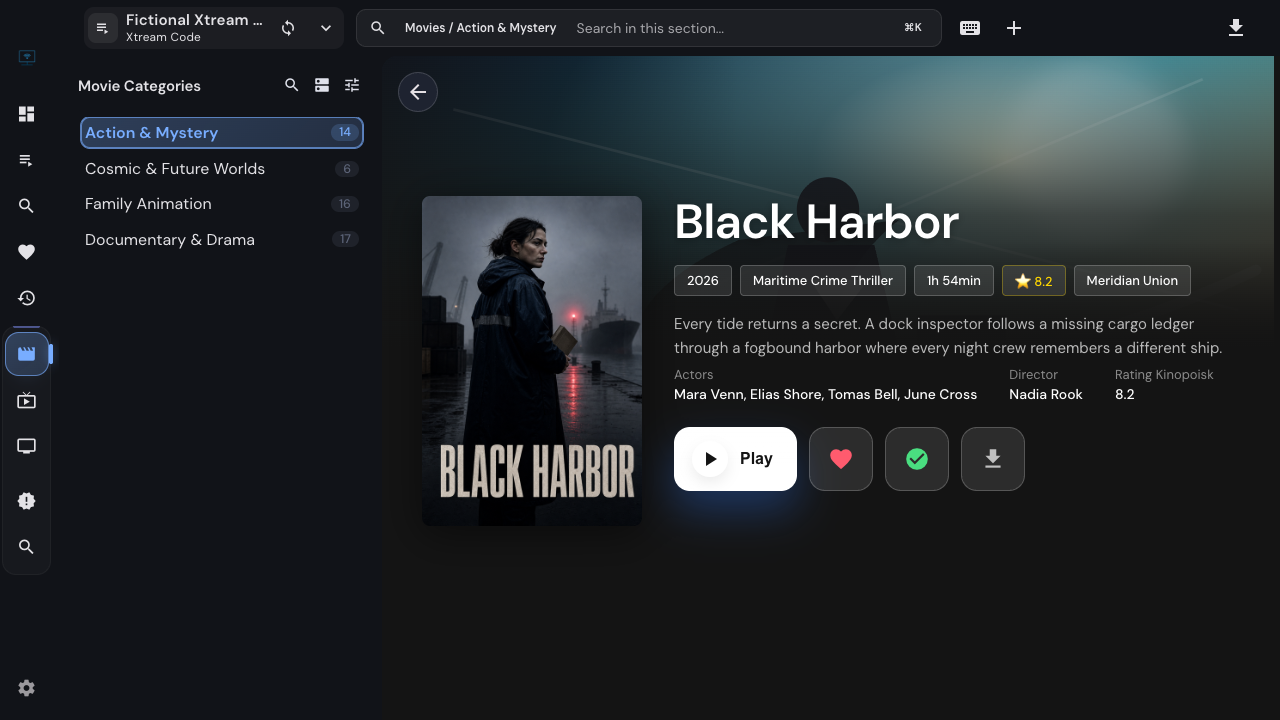
For Xtream and Stalker movies, open the detail page and use Mark as Watched when you have already finished the film. Use Mark as Unwatched to reverse the choice. The catalog updates its watched indicator, and a watched movie offers Play rather than a resume near the end.
Series already have controls for marking a season or the whole series watched. Use those when you are catching the library up with your viewing, rather than opening every episode just to seek to its end.
The checked watched button marks this fictional demo movie as finished. Click it again to mark the movie as unwatched.
Fit more covers on screen
Under Settings → General, turn off Show titles under covers for a denser movie and series grid. Titles appear on hover or keyboard focus, and missing artwork keeps a visible title. Live channels and search results retain their labels.
This changes presentation, not the names stored in the library. Turn it back on whenever permanent labels are more useful than an extra row of posters.
Related
FAQ
Frequently asked questions
Does an unavailable source mean my channels were deleted?+
No. Availability describes a connection check. A timeout, a temporary outage or an unverified account is different from deleting a saved source or losing its channels.
Does source cleanup delete entries automatically?+
No. The desktop cleanup dialog checks sources and lets you review the selection before deleting. Confirmed expired or disabled accounts can be preselected; uncertain results need review.
What happens when I delete a source?+
Its saved favorites, history and playback progress are removed with it. Downloaded files are kept. Export a playlist backup first if you want a restorable copy of supported source state.
Can I mark a movie watched without playing it to the end?+
Yes. In 0.24, Xtream and Stalker movie detail pages offer manual watched and unwatched actions, including details opened from Favorites or Recently Viewed.
Does hiding titles under covers make names inaccessible?+
No. Titles appear when you hover over a cover or focus it with the keyboard. Items without artwork keep their titles visible, and live channels and search results keep their labels.
Comments
Comments are hosted in GitHub Discussions. Loading them contacts giscus.app and github.com; nothing is requested from them until you choose to.