
Posters, Cast and Trailers for Your IPTV Library - The TMDB Option in IPTVnator
IPTVnator can fill in plots, cast, artwork and trailers for the movies and series in your own playlists using The Movie Database. What it sends, what stays on your device, how to switch it on, and how to use your own API key.

Provider catalogs are uneven. One movie arrives with a plot, a poster and a year; the next is a bare filename in a list of four thousand. IPTVnator can close that gap with The Movie Database, a community-maintained film and TV database, and fill in what your provider left empty: the plot, the cast with photos, the director, genres, the rating, better artwork and a trailer.
The feature is off until you turn it on, because it sends titles to a service outside your machine. This guide covers what it sends, what it does not, how to switch it on, and what the extra features it unlocks are good for.
IPTVnator is a player, not a service
What leaves your machine, and what does not
When enrichment is on and you open a movie or a series, IPTVnator asks TMDB about that one title. The request carries:
| Sent | Not sent |
|---|---|
| The title of the item you opened | Your provider, its address or your credentials |
| Its year, when the provider states one | Your playlist, its channels or its file |
| Your app language, so texts come back translated | Any identifier of you or your device |
| The API key of the build, or the one you entered | Anything about what you watch or for how long |
IPTVnator has no account system, no telemetry and no analytics. It does not report your library, and it never uploads a playlist anywhere. TMDB sees a stream of title lookups from an API key, the same as any other application using their API.
TMDB is a description, not a source
The Movie Database holds information about films and shows: text, artwork, credits, trailer links. It holds no streams. Nothing in this feature adds content to your library or makes a title playable that your own subscription does not already carry.
Switch it on
In the desktop app
- 1
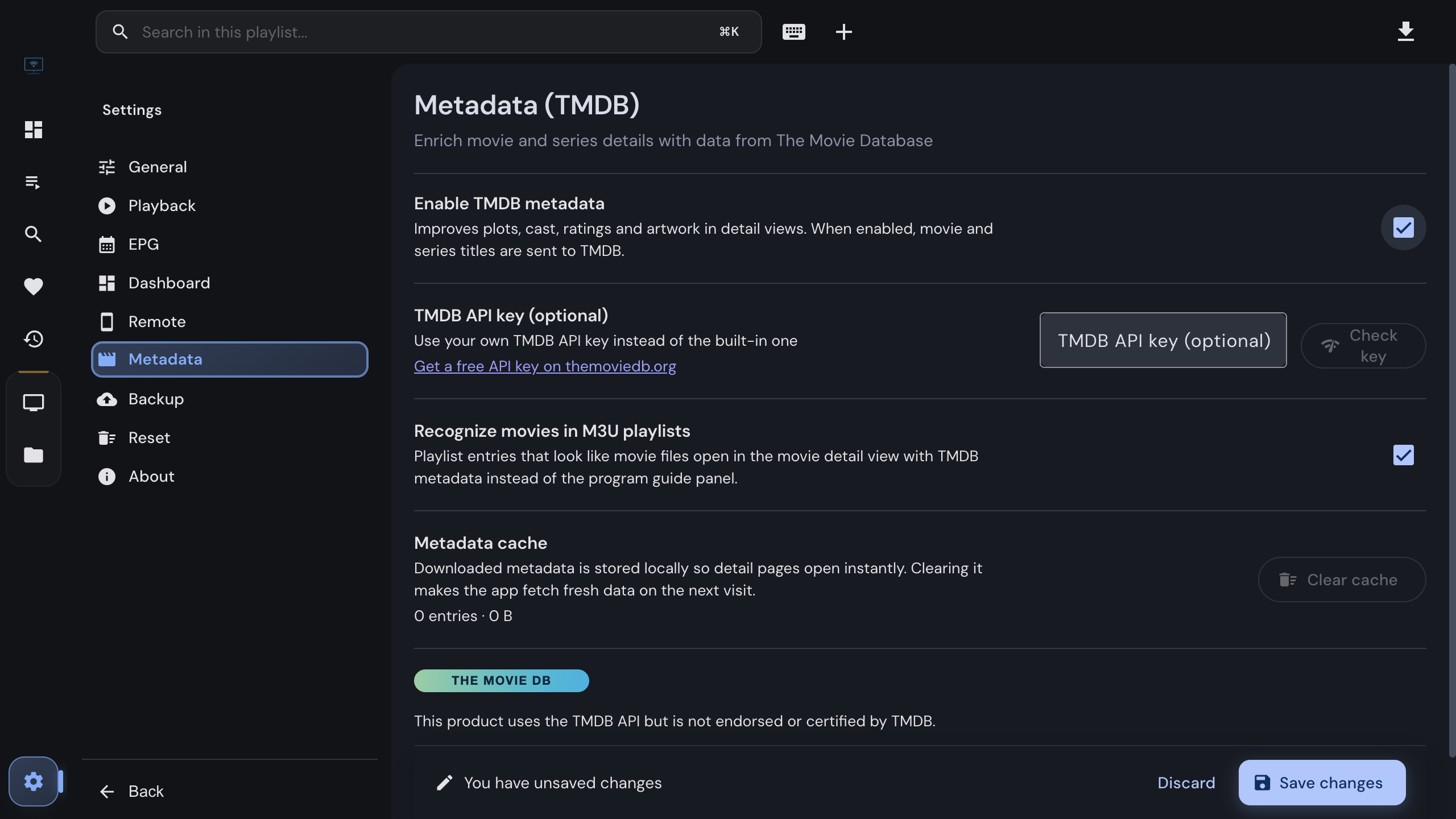
Open Settings and choose Metadata in the sidebar.
- 2
Switch "Enable TMDB metadata" on. The API key field, the cache panel and the attribution appear below it.
- 3
Leave the key field empty to use the key the official builds ship with, or paste your own free key from themoviedb.org.
- 4
Save. Open any movie: the provider data shows immediately, and the TMDB fields fill in a moment later.
Enrichment never blocks the page. The detail view renders what the provider gave, and the extra fields appear when TMDB answers. If TMDB is unreachable or the title cannot be matched, the page simply stays as the provider delivered it.
Your own API key
Keys are free: create an account on themoviedb.org and request an API key in the account settings. Two reasons to use your own:
- You build IPTVnator yourself. The key of the official builds is injected during the release build and is not in the public repository, so a self-compiled app has no key until you enter one.
- You would rather have your own quota. Requests then count against your key instead of the shared one.
The Check key button in the settings asks TMDB whether the key is valid and tells you either way.
What it unlocks
- Fuller detail pages. Plot, genres, rating, runtime, director, cast with photos, better artwork, and a trailer where TMDB has one.
- Real episode titles. Opening a season fetches its episode names, descriptions and stills, which turns “Episode 4” into something you can choose from.
- Similar titles. A rail on the detail page matching TMDB’s recommendations against your own catalog, so it only offers what you can actually play. On the desktop app it looks across all your Xtream playlists, not only the current one.
- Actor and director pages. Cast and director names become links: a short biography and the filmography, with the titles you own linked directly.
- Browse by year, genre or country. Metadata chips on a detail page become clickable and open a Discover page, again matched against your catalog.
- Dashboard rails. Optional “Trending this week” and “Recommended for you” rails, both matched against your libraries so nothing is offered that you cannot open.
- Movie recognition in M3U playlists. A playlist entry that looks like a movie file opens in the movie detail view instead of the live layout. This one has its own toggle under the main switch.
The local cache
Every answer is stored in the local database, so a page you opened once is instant afterwards and TMDB is not asked again. The settings show the number of entries and their size, with a Clear cache button.
Clear it when a title matched the wrong entry, or when you switched app language and want texts refetched in the new one. Clearing removes only downloaded descriptions and artwork; your playlists, favorites and history are untouched.
When the match is wrong
A provider’s own TMDB id is trusted only when the title or the year agrees with it; otherwise IPTVnator searches by title and year and gives up rather than attaching a confident-looking wrong result. If a film still shows the wrong plot, clearing the cache makes it look again.
If you would rather not
Leave the switch off. Every plot, poster and description your provider sends keeps working exactly as before; you only lose the fields TMDB would have added. The setting is a single toggle, so you can also turn it on for an evening of browsing and off again afterwards. Turning it off stops all lookups; clearing the cache also removes what was already downloaded.

This product uses the TMDB API but is not endorsed or certified by TMDB.
Related
The source whose movie and series catalog the metadata describes.
Where movie recognition turns playlist entries into detail pages.
The desktop app, where the cache and the cross-playlist features live.
FAQ
Frequently asked questions
What exactly is sent to TMDB?+
The title of the movie or series you opened, its year when the provider states one, and your app language. Nothing that identifies you, your provider, your playlist or your account is sent. There is no login, no telemetry and no analytics in IPTVnator.
Is it on by default?+
No. Metadata enrichment is off until you switch it on in Settings under Metadata (TMDB), precisely because it sends titles to a third party. With it off, IPTVnator only shows what your own provider delivers.
Does IPTVnator get content from TMDB?+
No. TMDB is a metadata database, not a content source. It supplies text and images that describe a title. Streams come only from the playlists and portals you added yourself, and nothing in this feature makes a title playable that your subscription does not already carry.
Do I need my own API key?+
No, official builds ship with a key. You can enter your own free key from themoviedb.org in the settings if you prefer, and builds you compile yourself need one because the key is not stored in the public repository.
Where is the downloaded metadata stored?+
In the local database of the desktop app, so a detail page you opened once loads instantly later. The settings show how many entries and how much space it uses, with a button to clear it. The browser version keeps it only for the session.
Why does a movie show the wrong plot or poster?+
The match went to a different title with a similar name. IPTVnator uses the provider's TMDB id when it agrees with the title or the year, otherwise it searches by normalized title and year and refuses to guess when nothing matches confidently. Clearing the cache in the settings makes it look again.
Does this work in the browser version?+
The enrichment itself does, but its cache lasts only for the session, and the features that read the local catalog, the cross-playlist Similar rail and the All portals scope on actor pages, are desktop only.
Can I use it without sending anything anywhere?+
Yes, by leaving it off. Every provider-supplied plot, poster and description keeps working; you only lose the extra fields TMDB would have filled in.
Comments
Comments are hosted in GitHub Discussions. Loading them contacts giscus.app and github.com; nothing is requested from them until you choose to.