
What Stream Info Can Tell You About Playback Problems
Read resolution, frame rate, bitrate, buffer and dropped frames in IPTVnator's Stream info panel, then collect a useful playback report without guessing from a single number.

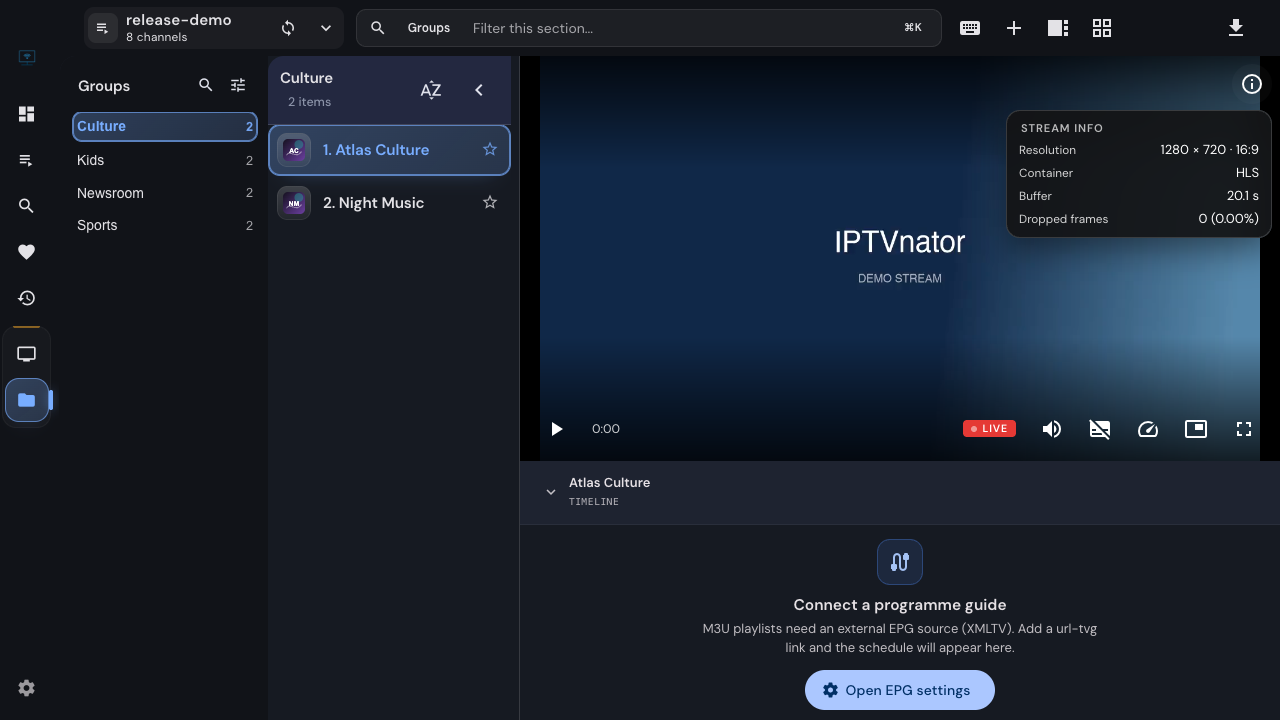
A picture that freezes every few seconds and one that plays smoothly at a lower resolution are different problems. IPTVnator 0.24 adds Stream info so you can see what the player knows while the video is running, instead of describing both as “bad quality.”
The panel is useful for comparing behavior and reporting a problem. Its numbers are observations from the playback engine; no single value can identify every cause of a stall.
IPTVnator is a player, not a service
Open Stream info
- Start a channel, movie or episode with a built-in web player, using unified controls, or with experimental frame-copy Embedded MPV.
- Reveal the player controls and click the information button labelled Stream info.
- Let the video run long enough for the reported values to settle, then observe what changes when the problem occurs.
The panel shows only values the current engine can report. A missing audio bitrate or source frame rate is not a zero reading. Immediately after starting, the panel may say there is no stream data yet.
The information button opens Stream info over the video. These values describe the local demonstration stream used for this screenshot.
Read the values in context
| Field | What it helps you understand |
|---|---|
| Resolution | The dimensions reported for the video, rather than the size of the app window |
| Frame rate | Frames actually presented over time; interruptions can lower the measurement |
| Source frame rate | The stream’s declared frame rate, when known |
| Stream bitrate | Bitrate information for the stream; not a connection-speed test |
| Video and audio | Codec and bitrate details when exposed by the engine |
| Channels and sample rate | Information about the audio track |
| Buffer | How much playable data lies ahead of the current position |
| Dropped frames | Frames counted as dropped by the playback path |
Suppose a source declares 50 fps but the measured rate falls during a freeze. That tells you the player is not presenting frames at the declared pace during that interval. It does not, by itself, tell you whether the cause was delivery, decoding or another interruption.
Likewise, a dropped-frame count is more useful when you watch whether it keeps increasing. A count left over from startup is different from a counter rising throughout playback.
Make one comparison at a time
Start with the same channel and the same section of a movie when possible. Note the player and what was happening when the fault appeared.
- If a stream offers several qualities, try a lower one and compare both smoothness and the available buffer readings.
- If only one channel fails, compare another channel from the same source. Avoid assuming that a working channel proves every stream on that source is healthy.
- If you try another player, record which engine you used. Different engines can expose different metrics, so compare playback behavior as well as the visible numbers.
Changing several settings at once makes it hard to tell which change helped. A short description such as “Video.js stalls on this channel; HTML5 plays it without that stall” is more actionable than a screenshot of one bitrate value.
When playback fails completely
The error screen serves a different purpose from Stream info. It reports the failure the player observed and can offer recovery actions, such as retrying or trying another player. For background on compatibility, see why some streams need an external player.
Use Copy diagnostics when an error offers it. In 0.24, that report includes useful failure details without the stream URL or account credentials. It can distinguish a reported access or DRM failure from a generic playback problem without sending extra diagnostic requests to the provider.
Add your app version, OS, player, source type and reproduction steps alongside the report. If you attach a screenshot, check the surrounding UI for source addresses or account data; the redaction of a copied report does not redact an unrelated screenshot.
Related
FAQ
Frequently asked questions
Why are some Stream info values missing?+
Different engines and streams expose different information. IPTVnator hides unavailable values rather than presenting them as zero. Let playback start before checking the panel.
Why can Frame rate differ from Source frame rate?+
Source frame rate is information declared by the stream when available. Frame rate measures presented frames over time, so stalls and dropped frames can lower it.
Is stream bitrate an internet speed test?+
No. It describes the stream where that information is available. It does not measure the maximum speed of your connection or prove that a network problem is responsible for a stall.
Can I see Stream info in external VLC or MPV?+
Those players have their own diagnostic tools. IPTVnator's overlay is available through its shared controls for built-in web players and experimental frame-copy Embedded MPV.
What should I attach to a playback issue?+
Include the exact app version, OS, selected player, source type and reproduction steps. If playback shows an error, use Copy diagnostics. The generated report omits stream URLs and credentials; review any extra screenshots or text you add yourself.
Comments
Comments are hosted in GitHub Discussions. Loading them contacts giscus.app and github.com; nothing is requested from them until you choose to.