
How to Download Movies and Episodes for Offline Viewing in IPTVnator
Save a movie or a whole season from your own Xtream Codes or Stalker source to disk with the desktop app, follow the queue, resume interrupted transfers, and watch from the offline library without a connection.

A long flight, a train through a tunnel, a holiday flat with Wi-Fi that gives up every evening: that is what the download manager in IPTVnator is for. It saves a movie or a batch of episodes from a source you already have to your disk, and later plays them from an offline library that works without any connection to the provider.
This guide shows how to start a download, what the queue does while the file transfers, how to watch what you saved, and what to do when a transfer stops. It applies to the desktop app on Windows, macOS and Linux.
What offline copies are for
IPTVnator is a player. It ships without channels, playlists or subscriptions and does not provide, host or sell any content. The download manager saves a local copy of something you already stream, for personal offline viewing on this device: on a train, on a plane, on a connection that keeps dropping. It does not bypass DRM and cannot reach anything your account cannot already play.
Whether keeping a copy is allowed depends on your provider's terms and on the law where you live. Check both before you rely on it. The screenshots below come from the project's own mock servers with fictional titles.
What you can save
- Movies and series episodes from Xtream Codes and Stalker sources. Every movie detail page and every episode row has a download button.
- Not live TV. A live channel has no file to save. If you want to keep a broadcast, the Embedded MPV player can record it while it plays; recordings land in the same manager.
- Desktop only. The browser version and the Docker image cannot write to your disk, so they show no download buttons.
IPTVnator transfers one file at a time and queues the rest. That keeps the load on your provider the same as one playing stream, and it keeps season downloads from opening a dozen connections at once.
Choose where the files go
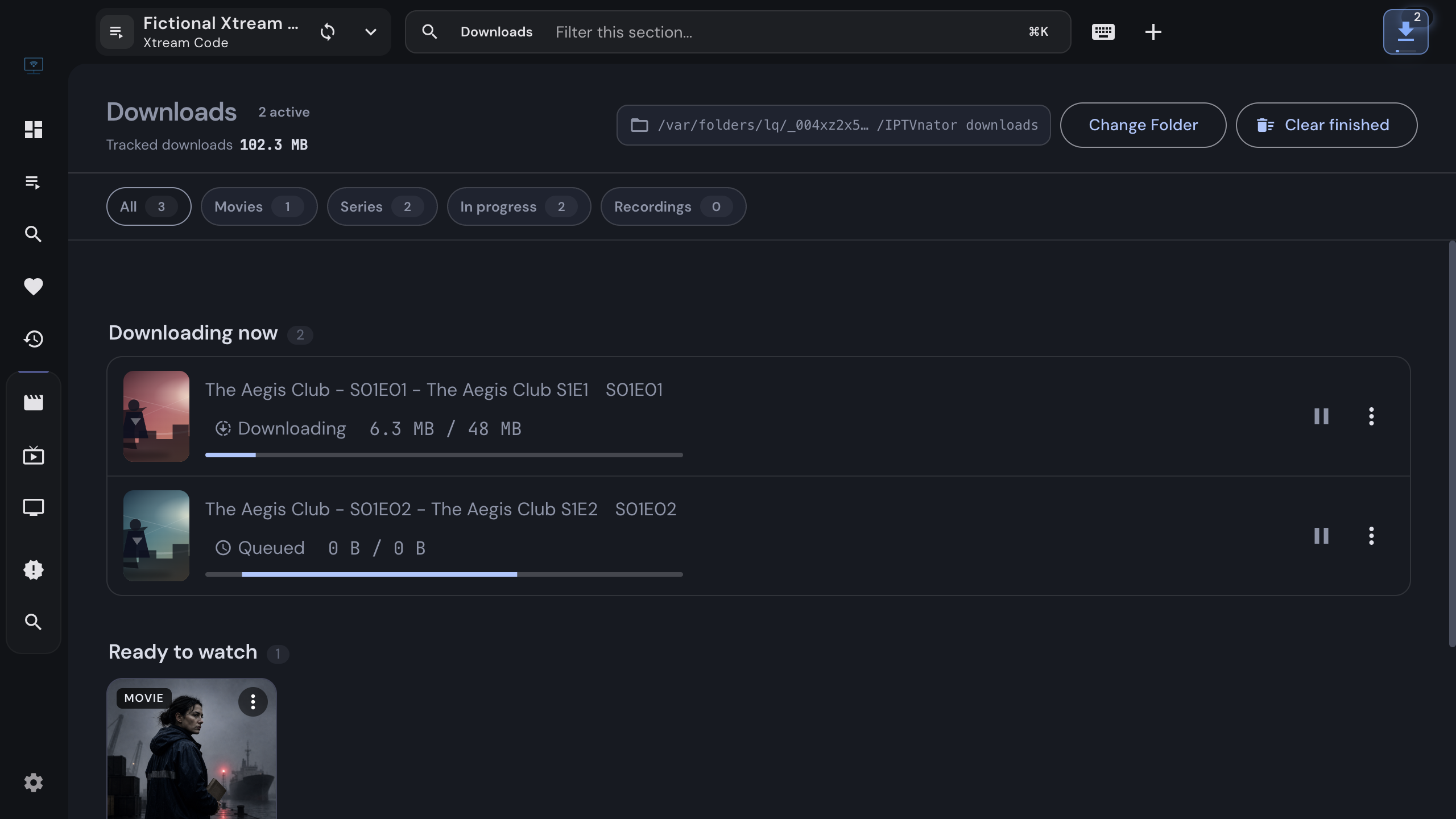
Open the manager from the download icon in the header. The folder line at the top shows where new files will be written: your system Downloads folder by default. Change Folder opens the system folder picker; the choice is remembered. The Tracked downloads figure next to it is the disk space used by everything the manager knows about.
Folders and permissions
IPTVnator writes only into the folder you selected. Downloads that were saved to an earlier folder stay where they are and keep playing from there.
Download a movie
From the movie page
- 1
Open the movie in its source. The action row under the poster has Play, a heart for favorites and a download icon.
- 2
Click the download icon. It turns into a progress ring while the file transfers; you can leave the page, the transfer continues in the background.
- 3
When the ring becomes a check mark the file is on disk. Clicking the check mark reveals the file in your file manager.
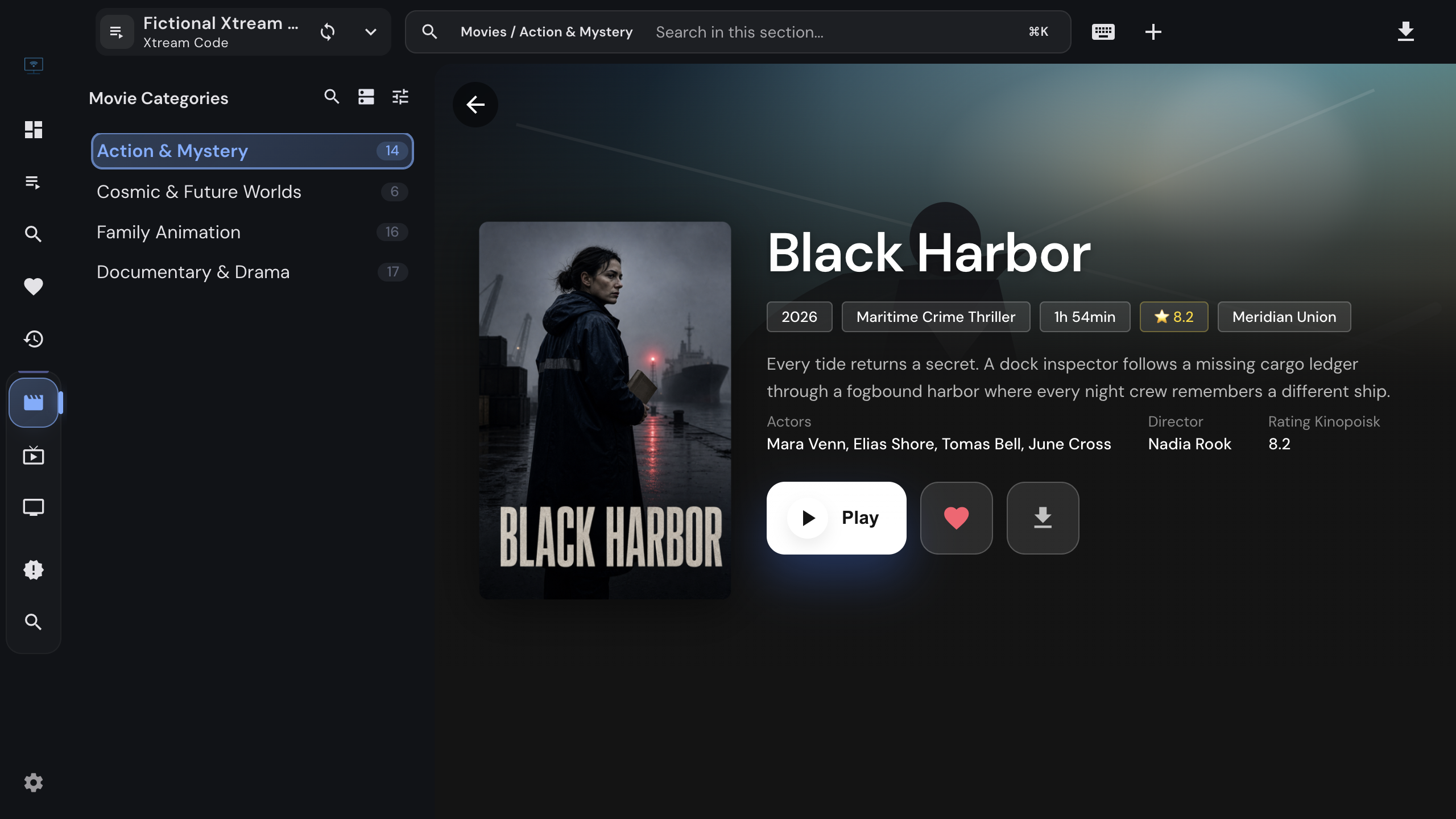
The title, poster, description and the metadata shown on the page are stored with the download, so the offline library can show them even when the provider is unreachable.
Download episodes and whole seasons
Every episode row on a series page carries the same download button. For more than one episode at a time, use the Download season button in the season header: it queues every episode of the selected season that is not already queued, paused or downloaded, and reports how many were added and how many were skipped. Specials count as a season of their own.
Already have some of it?
Download season is safe to click again. Episodes that are already on disk or already in the queue are skipped, so re-running it only fills the gaps.
Follow the queue
The Downloads page has two parts. Downloading now at the top lists the active transfer with the bytes received so far and the percentage, followed by everything waiting in line. Each row offers Pause, Resume and Cancel:
- Pause keeps the partial file. Resume continues from the same byte, also after you closed the app or it crashed; unfinished transfers come back as paused, not lost.
- Cancel stops the transfer and discards the partial file.
- Connection drops are handled for you. When a provider cuts a long connection, IPTVnator reconnects and continues from where it stopped, verifying the tail of the file before it appends anything. Panels that cap every connection at a few hundred megabytes no longer need a click per slice.
The filter chips narrow the page to Movies, Series, In progress or Recordings, and the search box filters by title. Neither changes the tracked size in the header, so hiding a card never makes its disk space look free.
Watch offline
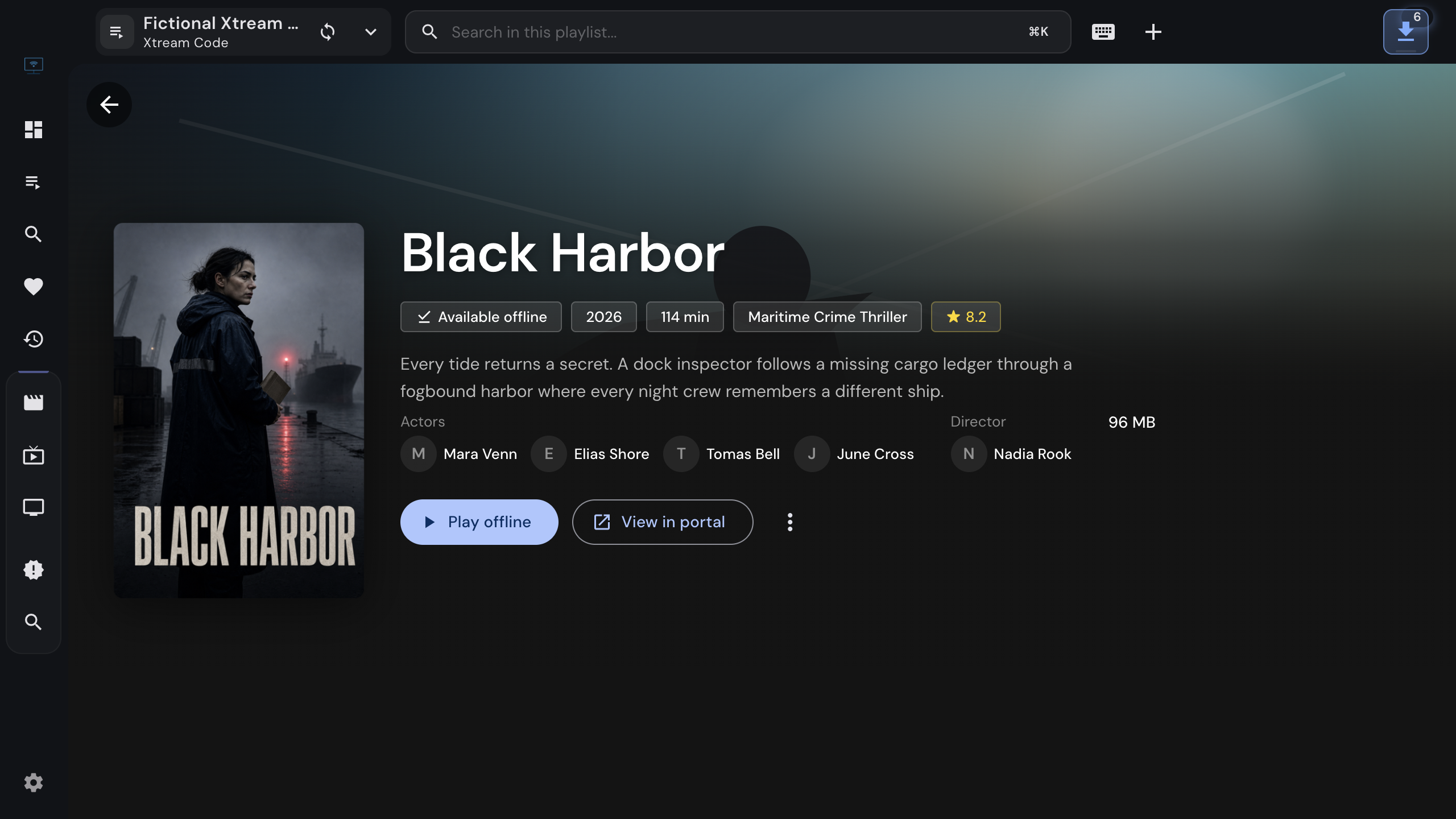
Finished files appear under Ready to watch as poster cards, marked Available offline in their detail: movies on their own, series grouped with their downloaded episodes, recordings with the channel logo. A card opens the offline detail, which plays the local file and needs no connection.
- Play offline opens the local file in the app’s player. Nothing is requested from the provider.
- The ⋮ menu on the poster has Show in folder, Copy download URL and Remove.
- A series detail lists only the episodes you actually have. Each episode plays its own file.
- View in portal jumps back to the provider page of the same title when the source can still be reached, for example to download the next season.
The library is also reachable from inside a source: the Downloads entry in the sidebar of an Xtream or Stalker source shows the same manager filtered to that source.
When something needs attention
Transfers that stopped without finishing move to a Needs attention section:
- Interrupted means the connection dropped more often than the automatic reconnect could handle. Retry resumes from the retained partial file.
- Failed with another reason usually means the provider refused the request or the file disappeared on the server. Retry asks again; if it keeps failing, play the title once in the app to check that the source still works.
- File missing appears when a finished file was moved, renamed or deleted outside the app. Download again fetches it once more; Remove forgets the entry.
- Clear finished in the header removes completed, failed and canceled entries from the page. Finished media files stay on disk; only the partial data of failed and canceled transfers is deleted.
Removing a source
Deleting a playlist does not delete its downloads. The files and their cards stay in the library; only View in portal is unavailable until the source is added again.
Good to know
- Downloads carry the same User-Agent and Referer as playback, so a provider that checks them accepts the transfer just like it accepts the player.
- The file is saved exactly as the provider serves it. There is no conversion, so a
.mkvstays a.mkvand plays in any player that handles the container. - The local database keeps the download entries; a backup and restore of your sources does not move the media files themselves.
Related
The desktop app for Windows, macOS and Linux is where downloads live.
Connect the source whose movies and series you want to save.
The release that turned the queue into an offline library, with Live-TV recordings.
FAQ
Frequently asked questions
Is it legal to download movies and episodes with IPTVnator?+
That depends on your provider's terms and on the law where you live, not on the app. IPTVnator only saves a copy of something your account can already stream, for personal offline viewing on the same device. It does not bypass DRM, does not provide any content, and cannot reach titles your subscription does not include. If your provider's terms forbid saving copies, do not use the feature with that source.
Where are the files saved, and can I move them?+
In your system Downloads folder unless you pick another one with Change Folder on the Downloads page. The files are ordinary media files that any player can open. If you move or rename one, the manager marks it as File missing; it keeps the entry so you can download it again or remove it.
Which file format do I get?+
Exactly what the provider serves, usually an mp4 or mkv file. IPTVnator does not convert, re-encode or strip anything; the bytes on disk are the bytes the stream would have delivered to the player.
Does a download count as a connection on my account?+
While a file is transferring it uses one connection, just like a playing stream. IPTVnator downloads one file at a time and queues the rest, so a season never opens six connections at once. If your subscription allows a single connection, wait for the queue to finish before you start playing.
Can I download live TV?+
No. Live channels have no file to save. The Embedded MPV player can record a live stream while you watch it, and recordings appear in the same manager under Recordings; that feature is still experimental and described in the v0.23 release notes.
Does this work in the browser version or the Docker image?+
No. Downloads need the desktop app on Windows, macOS or Linux. The browser version has no access to your disk, so the download buttons are not shown there.
What happens to my downloads if I delete the source playlist?+
Nothing. Downloads are stored independently of the source, so the files and their library cards stay. Only View in portal is disabled until the source exists again.
Why does a download stop at the same size every time?+
Some panels cap every connection at a few hundred megabytes or a few minutes. IPTVnator reconnects automatically and continues from where the transfer stopped, verifying the last part of the file before it appends. If a transfer still ends up in Needs attention, Retry resumes it; it never starts over from zero as long as the partial file is on disk.
Does Remove delete the file?+
For a finished download, no. Remove and Clear finished take the entry out of the manager and leave the media file on disk. For a failed or canceled download, the retained partial data is deleted, because it can no longer be resumed.
Comments
Comments are hosted in GitHub Discussions. Loading them contacts giscus.app and github.com; nothing is requested from them until you choose to.