
Browse the TV Guide Without Leaving Your Channel
Keep watching while you compare channel schedules in IPTVnator's M3U programme guide. Open the grid, filter by group or favorites, and switch channels without closing it.

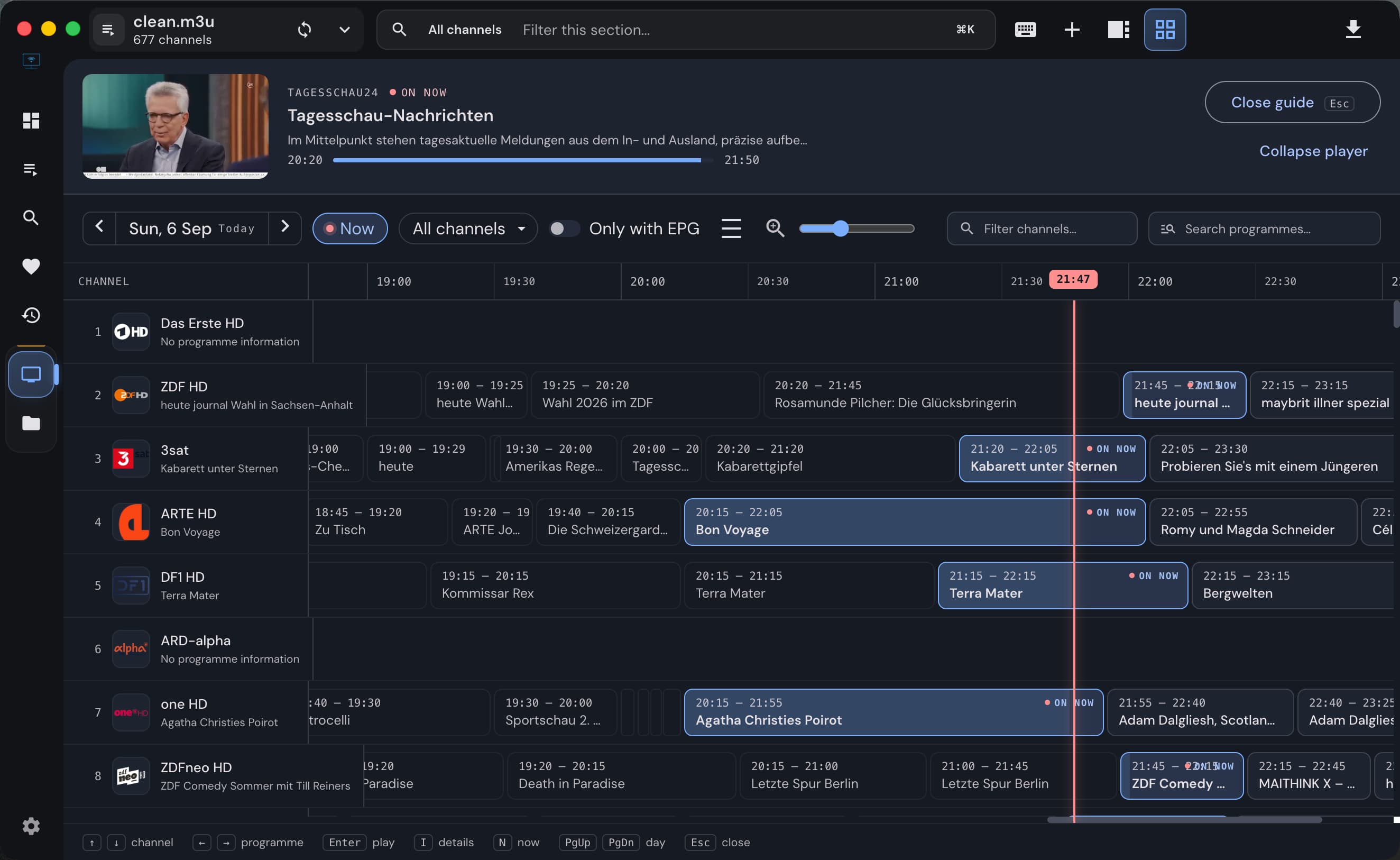
You are watching a channel, but want to see what else is on. Opening each channel in turn makes that a slow search. IPTVnator 0.24 adds a different way to browse: a programme grid with your M3U channels in playlist order and the current video still playing above it.
This guide covers the desktop M3U Guide. Have an M3U playlist and its XMLTV data loaded first; the playlist and EPG setup guide covers that preparation.
IPTVnator is a player, not a service
Open the guide while watching
- Open an M3U playlist and start a live TV channel.
- Leave fullscreen if it is active, and close any open settings dialog.
- Click Guide in the programme panel or use the Guide action in the workspace header. The command palette offers the same action. You can also press G while on the player page, outside a text field or menu.
- Browse the grid. The inline player stays above it alongside information about the channel you are watching.
Opening Guide does not restart the current channel. The same player changes size to make room for the schedules. Collapse the preview strip when you want more space for the grid, then expand it when you want to see the picture again.
The multi-channel Guide in v0.24. The highlighted grid button in the top toolbar opens this view. Screenshot from the v0.24.0 release.
Choose the channels you want to compare
The rows come from your playlist, rather than every channel present in an XMLTV file. This keeps their order familiar and avoids filling the grid with channels you cannot play.
Choose all channels, a group, or favorites. Opening the guide from the favorites view starts with favorites; opening it while browsing a group keeps that group in view. For a large playlist, a small group makes it easier to compare programmes side by side.
Use Only with EPG to hide channels without guide coverage. Switch it off again if you are looking for a channel that plays correctly but has no schedule. Hiding a row here does not remove the channel from the playlist.
Comfortable rows leave more room between channels. Compact rows fit more of the list on screen. The guide remembers the density and Only with EPG choices for the next visit.
Switch now, or inspect a programme first
| Action | Result |
|---|---|
| Click a channel row or its currently airing programme | Switch playback and keep browsing the guide |
| Double-click a channel | Switch and close the guide |
| Open another programme card | Read its programme details |
| Close the guide | Return to the usual player layout |
A future programme is a schedule entry, not a playable stream waiting to start. Likewise, seeing a past programme in this grid does not establish that your source offers an archive.
Navigate from the keyboard
With focus in the guide grid, the arrow keys move between channels and programmes. Enter switches to the selected channel and closes the guide; I opens details, N returns to now, and Escape closes the guide. Page Up / Page Down change the day.
These are guide controls. Outside the guide, Page Up / Page Down can switch M3U channels, so close the grid before using those keys to zap through the playlist.
If the grid looks empty
First check the selected group and Only with EPG filter. Then look at whether the same channel has programme data in the ordinary player view. If both are empty, verify that the XMLTV source loaded and contains the channel and date you are browsing.
If the schedule belongs to another channel or is several hours out, use the EPG mapping and time-offset guide. The multi-channel grid uses those mappings and the display offset too; importing the same file again is not a substitute for correcting a mismatched channel.
Related
FAQ
Frequently asked questions
Is this guide available in the browser version?+
The multi-channel M3U Guide described here is a desktop feature in 0.24. The browser version and portal programme views do not offer this same layout.
Does the small player open a second stream?+
No. Opening the guide moves the existing inline player into a smaller area above the grid. Selecting another channel changes what that player is playing.
Why does a channel appear without a programme?+
The channel list comes from your playlist. A schedule appears only when imported EPG data can be matched to that channel for the selected time. Check the EPG source and channel mapping, or enable Only with EPG to hide empty rows.
Can I open the guide while fullscreen?+
No. Leave fullscreen before opening the Guide. For changing channels while staying fullscreen, use the channel panel opened with C instead.
Will external MPV or VLC appear above the grid?+
No. External players keep their own window. The guide shows a compact now-playing strip, without an embedded video preview.
Comments
Comments are hosted in GitHub Discussions. Loading them contacts giscus.app and github.com; nothing is requested from them until you choose to.