
Switch Channels and Episodes Without Leaving Fullscreen
Open IPTVnator's fullscreen side panel with C or the left edge of the video. Search live channels, choose a season, and switch episodes while keeping the player fullscreen.

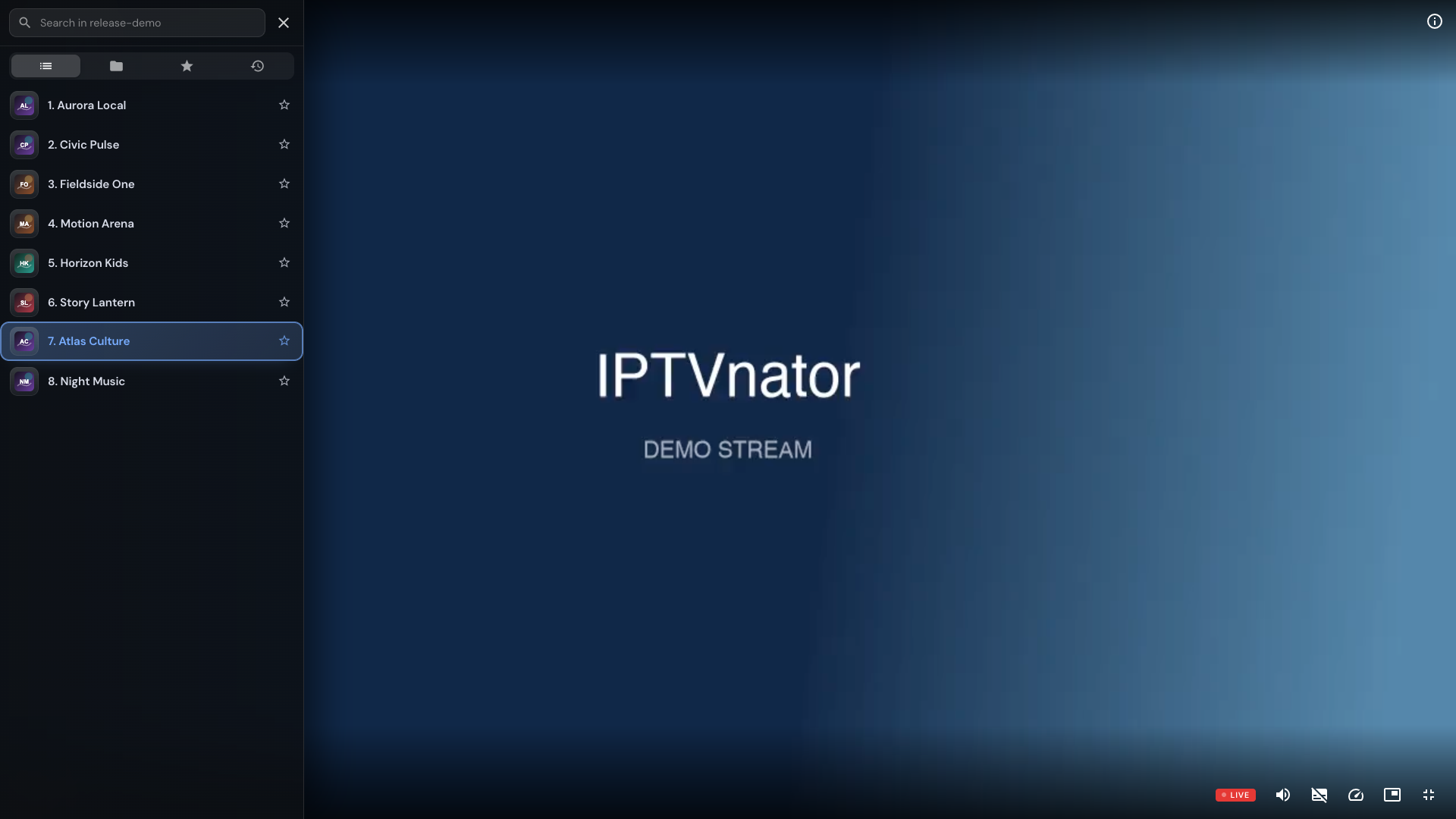
Fullscreen is useful until changing channels makes you leave it. IPTVnator 0.24 puts a channel or episode list over the side of the video, so you can choose what comes next and keep watching at the same size.
For live TV, the panel provides channel search. For a series, it provides seasons and episodes with artwork and watch progress. The content follows what you are playing.
IPTVnator is a player, not a service
Check the playback settings
Open Settings → Playback and enable Channel and episode list in fullscreen. If you use HTML5, Video.js or ArtPlayer, keep Unified controls for web players enabled as well. These are the shared controls introduced as the default in 0.23.
The panel is available with those web players and the experimental frame-copy Embedded MPV engine. Native-view Embedded MPV and external player windows cannot show this panel.
Enter fullscreen using the player’s fullscreen control. Maximizing the desktop window gives the app more room, but is not the same as putting the video into player fullscreen.
Browse live channels
- Start a live channel, then enter player fullscreen.
- Press C, or rest the pointer on the left edge of the video. Clicking the edge opens the panel too; on a touchscreen, tap it.
- Use the search field to narrow the channel list.
- Select a channel. With the shared controls, playback switches while fullscreen remains active.
- Press Escape or use the panel’s close button when you want the whole picture again.
The channel list follows the source or collection you are watching. M3U offers views for all channels, groups, favorites and recent channels; portal lists follow their relevant channel context. Searching here chooses from that list rather than searching every playlist in your library.
For M3U, Page Up / Page Down also let you step through channels without opening the panel. Those keys have a different job inside the separate programme Guide, where they move between days.
Press C in player fullscreen to open the channel list. The pictured channels and video are local demo fixtures.
Choose another episode
Start an Xtream or Stalker series episode and open the panel the same way. Instead of a channel search, you get season navigation and an episode list. The list shows available stills, descriptions, runtimes and watch progress, helping you find where you left off.
Choose a season, then an episode. The selected episode starts in the same fullscreen view. If your source does not provide artwork or a description, the episode can still be selected; missing metadata does not turn it into a different playback mode.
The panel is for series playback. A movie does not gain an episode list, and the feature does not change the phone remote’s live-channel controls.
Keep fullscreen when switching
The shared controls keep fullscreen on the surrounding player area as the stream changes. If you opt back into a web player’s original controls, switching can leave fullscreen because that player replaces the video surface. Enable unified controls if this is the behavior you want to avoid.
If fullscreen still ends unexpectedly, note the selected player, whether unified controls are enabled, and whether you changed a channel, an episode, or the source of a movie. Also note whether an error appeared: a playback failure may need to reveal recovery actions.
If the panel seems hard to reach
Use C first to distinguish a settings problem from a pointer interaction problem. Click the video before trying the shortcut if focus is still in a text field. Once the channel search has focus, letter keys are ordinary search input; pressing C again does not toggle the panel closed.
Use Escape to close it, then try the left edge again. On touch, tap the edge above the control bar rather than a playback button.
Related
FAQ
Frequently asked questions
Why does C do nothing?+
Start a live channel or series episode, enter player fullscreen, and check Channel and episode list in fullscreen under Settings → Playback. For web players, enable Unified controls for web players too. The shortcut does not run while you are typing in a text field.
Can I use the panel with external VLC or MPV?+
No. External players have their own windows and controls. The panel works with the built-in web players using unified controls and with experimental frame-copy Embedded MPV, not native-view Embedded MPV.
How do I close the list without leaving fullscreen?+
Use its close button, click the video outside it, or press Escape while the panel is open. Once the panel is closed, Escape can leave fullscreen normally.
Does pressing C again close the panel?+
No. C opens the panel and focuses its search field when one is present. Typing another C then searches for that character. Use Escape or the close button to dismiss the panel.
Does the episode panel work for both Xtream and Stalker?+
Yes. During series playback it shows season tabs and episodes for Xtream and Stalker sources, with the information available for that show. A standalone movie has no episode panel.
Comments
Comments are hosted in GitHub Discussions. Loading them contacts giscus.app and github.com; nothing is requested from them until you choose to.