
Got a Dreambox or Enigma2 receiver? Give it a new job with Dreaminator
Meet Dreaminator, my companion project for Enigma2: organize IPTV channels in a browser, send them to your receiver, and watch with the remote you already use.

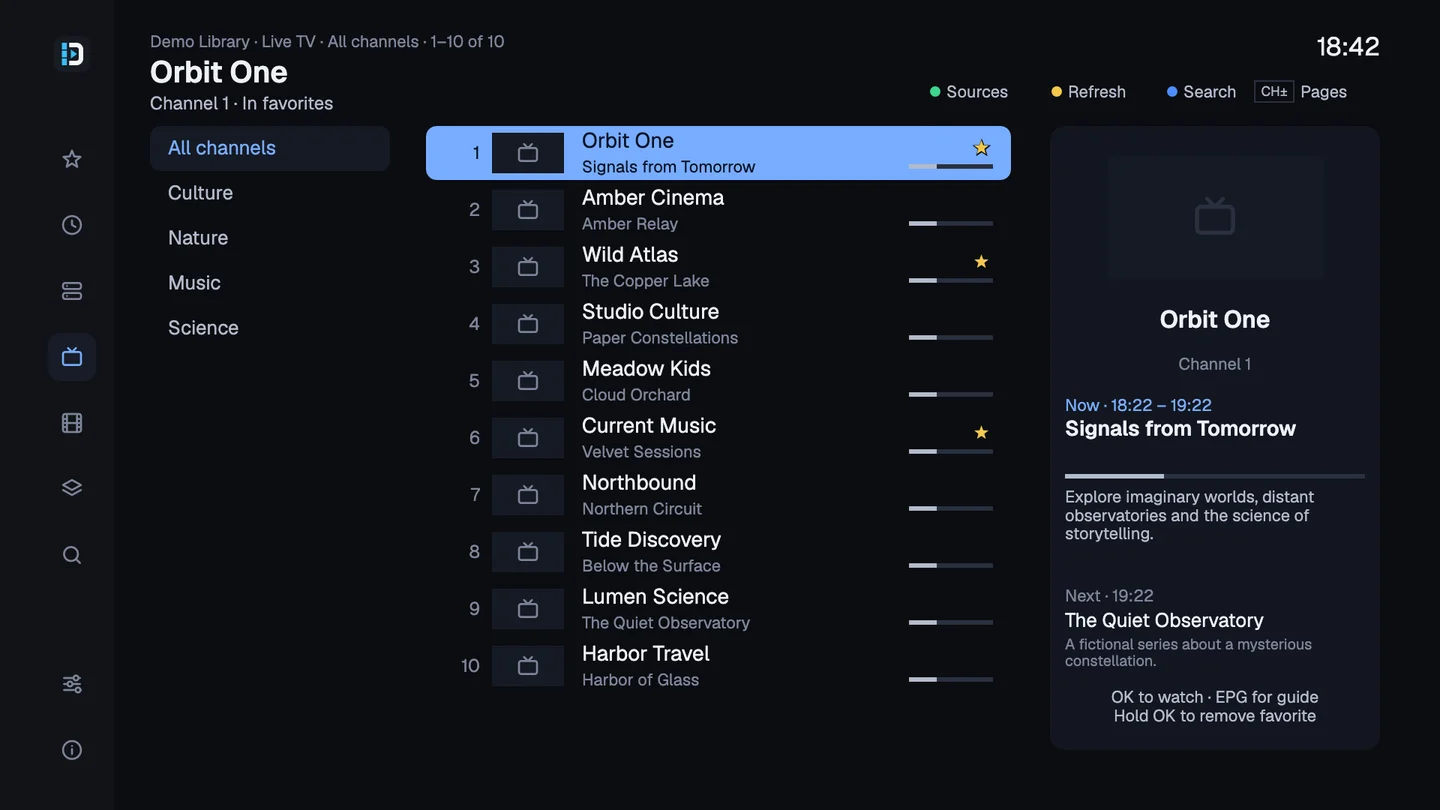
If you have a Dreambox or a compatible Enigma2 receiver at home, you already have a box beside the TV, a remote, and a way to play video. Dreaminator adds a way to organize your IPTV sources around that setup.
I’ve been working on Dreaminator, a small companion project to IPTVnator, for exactly that setup. You organize things on a tablet, phone or computer, then put it down and watch on the TV with your usual remote. My Dreambox DM520 and Vu+ Uno 4K SE are the two receivers I’ve tested; other models and images still need checking.
Dreaminator has two parts running on the receiver: a small Go service that serves the web interface, and a native Python plugin for Enigma2 that draws the TV screens. The browser is on your other device. You don’t need a browser on the receiver itself.
If you use IPTVnator, the source types and the idea of bringing your own playlists will feel familiar. Dreaminator is a simpler, standalone project built around Enigma2. It doesn’t bring the whole IPTVnator feature set to a receiver, and it doesn’t sync your library or settings between the two apps.
The web screenshots below use demo data. The TV interface previews, including the image above, use English demonstration labels; the app currently uses Russian labels.
Dreaminator is a player and playlist manager. It doesn’t supply content, channels, subscriptions or access credentials. You connect your own sources and are responsible for having the necessary rights or permission and following applicable laws and your provider’s terms.
From your browser to the channel list
Once installed, open http://<receiver-address>:8088 from another device on your home network. The plugin’s Settings screen also has a QR code for that address. There’s no web login, so keep it on a trusted home network and don’t expose that port to the internet.
Start by adding a source under Playlists. Live TV works with an M3U URL or file, an Xtream Codes account, or a Stalker/Ministra portal. You can add an XMLTV guide as well.
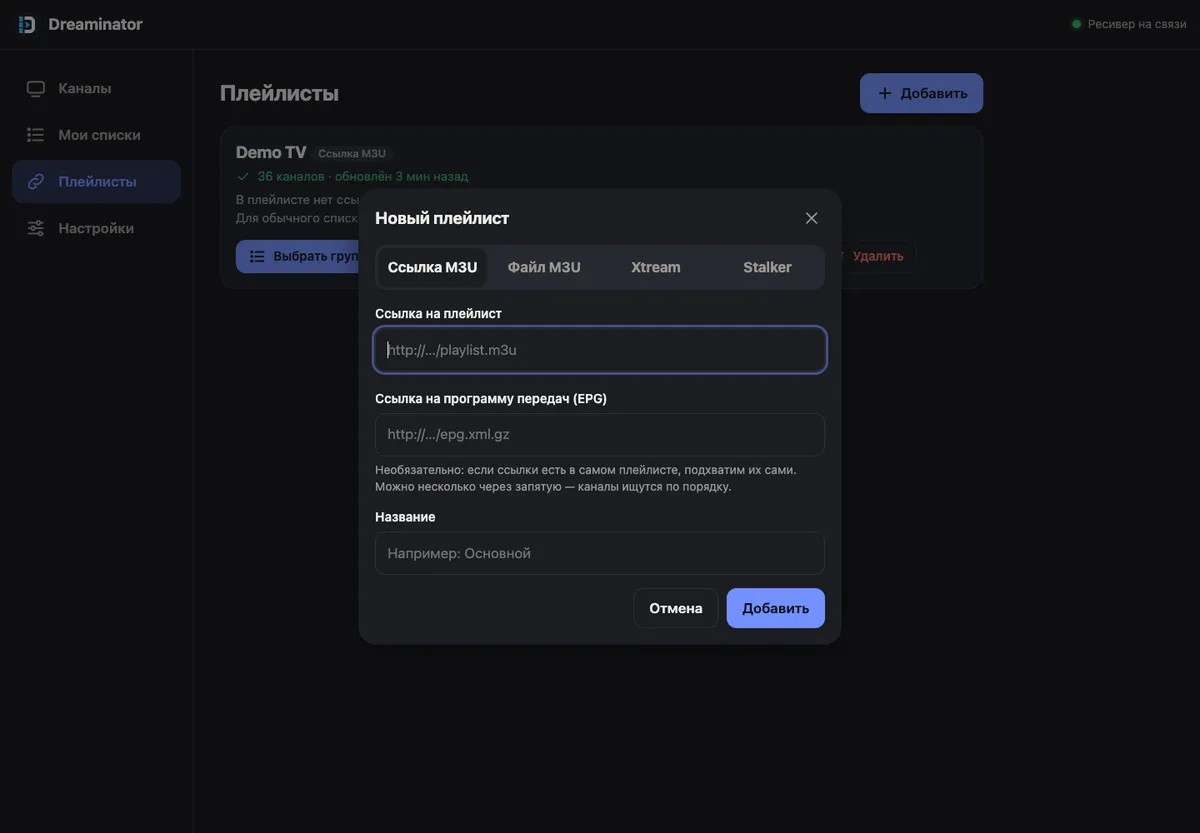
Add a source in the browser. Here, the M3U URL form is open.
Next, choose the groups or individual channels you want. A star adds a channel to a list, or you can turn a whole group into its own list. Under My lists, drag channels into the order that makes sense for your household. You don’t have to bring the provider’s entire channel lineup to the TV.
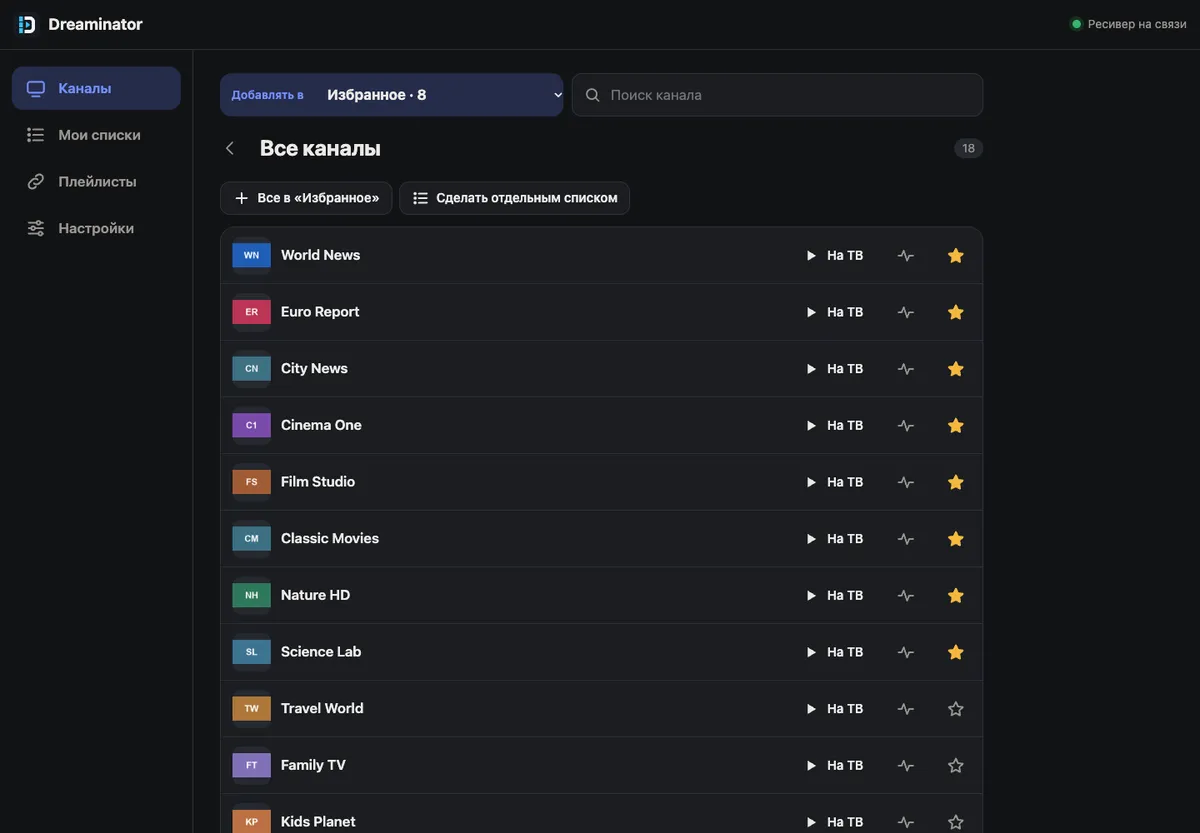
When you’re happy with the lists, select Send to TV. They become ordinary Enigma2 bouquets — the receiver’s named channel lists — alongside your satellite channels. From there, changing channels works the way it always has. Adding a source alone doesn’t create bouquets; sending your chosen lists does.
OpenWebif is needed for receiver controls, including reloading bouquets and tuning. For programme information in the receiver’s usual bouquets and infobar, install and configure EPGImport too. The installation guide walks through both.
Watching with the remote
You can stay in the receiver’s normal channel list, or open Dreaminator from Plugins for its own Live TV view. That view brings together channels, what’s on now, what’s next and the programme guide. It can browse the source even if you haven’t sent any lists to the TV.
For films and series, the plugin has a poster catalog, descriptions, seasons and episode lists. These currently work with Stalker/Ministra sources only. M3U and Xtream movies and series are still planned, so a source that works for live channels doesn’t necessarily give you a movie library here.
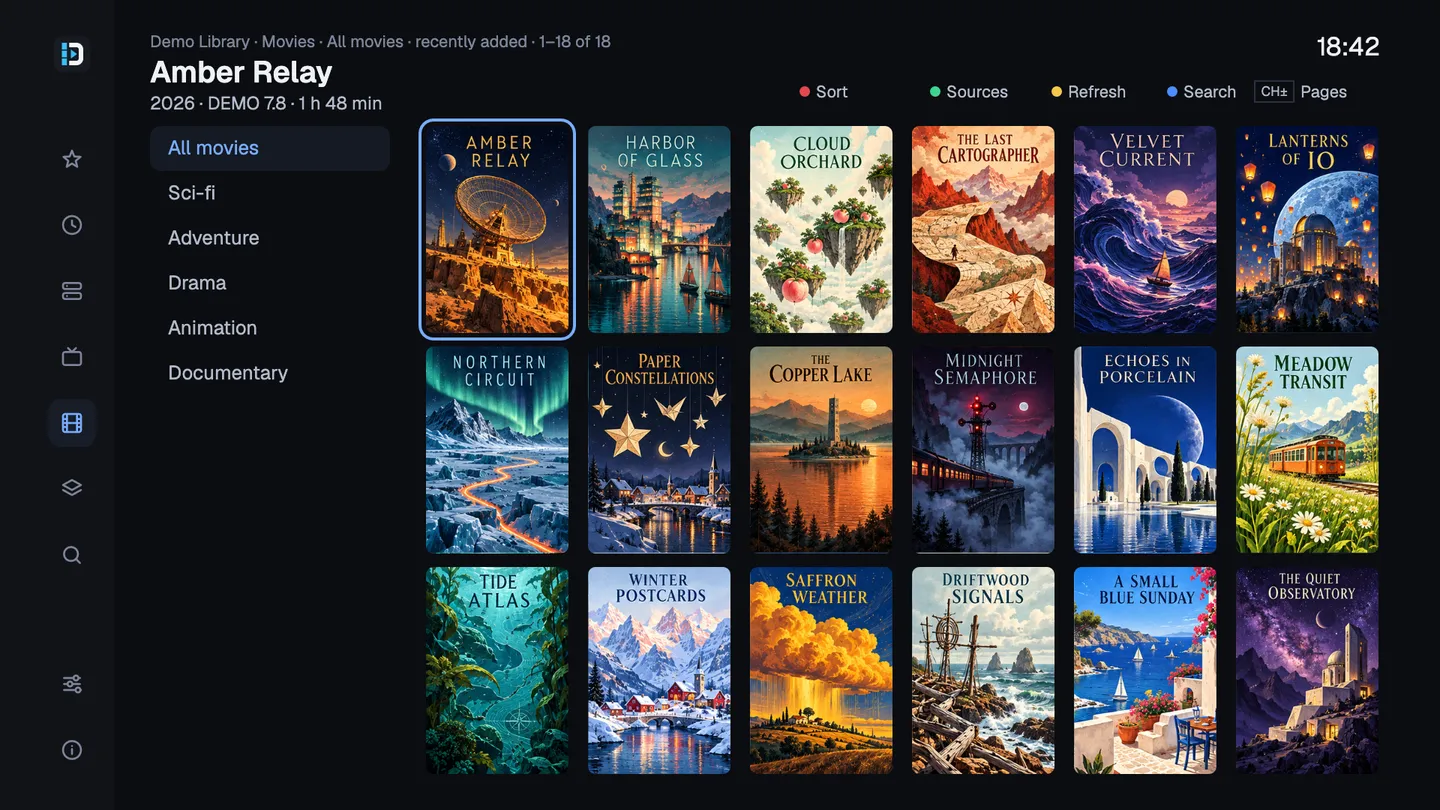
Browse films by category.
Hold OK to save an item to Favorites. Recents help you find something you’ve opened before, and the on-screen keyboard searches within the current source. Recents record what you launched; playback resume, watched tracking and automatic next-episode playback are still planned, as are downloads and cross-source search.
Catch-up is available for supported M3U archive modes, where the source actually retains the programme. You can open it from the guide or the Dreaminator Archive entry in a receiver channel list. Xtream-account and Stalker catch-up are planned; the supported M3U archive mode named xc doesn’t mean Xtream account archives are implemented.
Streams go directly to Enigma2’s player. Dreaminator doesn’t transcode them, so whether a particular stream plays, and how audio, subtitles or seeking behave, depends on the receiver, its image and the source.
Trying it on a receiver
Dreaminator 0.11.2, published on October 31, is the current stable release. These are the combinations I’ve tested on real hardware:
| Receiver and image | Package |
|---|---|
| Dreambox DM520 · OpenHDF 6.4 build 137 | dreaminator_0.11.2_all.ipk — MIPS little-endian, soft-float |
| Vu+ Uno 4K SE · openATV 7.5 | dreaminator_0.11.2_vuuno4kse.ipk — 32-bit ARMv7 |
The Dreambox package’s _all name is historical: it contains a MIPS executable and isn’t universal. The Vu+ needs its separate ARM package. Other Enigma2 models and firmware images are unverified, and you don’t need to reflash a working receiver just to match these test setups.
Download the matching IPK, follow the current installation instructions, and restart the Enigma2 GUI when prompted. Then open the web interface, add one source and try a few channels before organizing the rest.
The full screenshot gallery has more TV views, and the repository has the code, roadmap and issue tracker. If you try it on another receiver, I’d like to hear how it goes. Include the model, image/build and Dreaminator version, along with what worked or failed. Please leave provider credentials and stream URLs out of your report.
Comments
Comments are hosted in GitHub Discussions. Loading them contacts giscus.app and github.com; nothing is requested from them until you choose to.